Colours
Where: Settings > Colours menu. Who: administrators change the colours; editors view them and copy their CSS classes.
This is where you define the site's colour scheme, once and for all. No other screen lets you enter a colour freely: activities, events, pages and post categories choose one of the colours defined here.
The benefit: changing a colour on this screen changes it everywhere at once. If the site's orange becomes a softer orange, all the activities, pages and blocks that use it change in one go, without having to go over them one by one.
Why only administrators can change the colours
These colours make up the site's graphic charter. They were carefully thought out beforehand, to go well together and give the site its identity. As changing one alters the look of the whole site at once, only administrators can change them.
Editors see the same screen in read-only mode, to copy the colours' CSS classes from it (see What editors see). If you think a colour should change, contact the site's administrator.
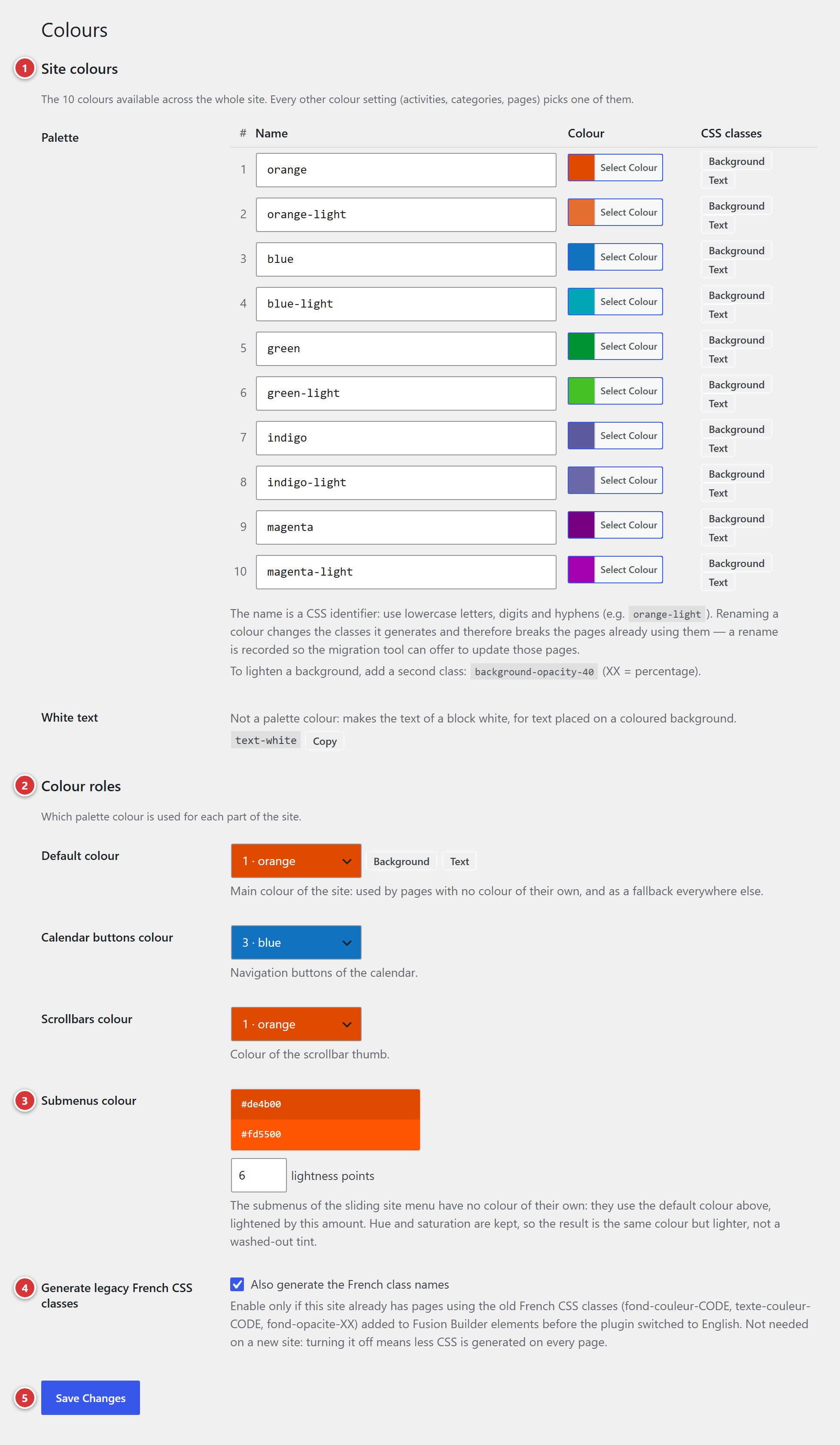
1 Palette: the site's colours. 2 Colour roles: which palette colour colours which part of the site. 3 Submenus colour: calculated from the default colour. 4 Legacy French CSS classes: a compatibility setting for older sites. 5 Save Changes: nothing is taken into account before this click.
Understand in one minute
flowchart LR
    P["Palette<br>10 colours"] --> A[Activities]
    P --> E[Events]
    P --> G[Pages]
    P --> C[Post categories]
    P --> R["Roles<br>header, footer,<br>menu, calendar…"]
P --> K["CSS classes<br>blocks in Avada pages"]- The palette has 10 slots, numbered 1 to 10. Each one receives a colour and a name.
- Everywhere else, you choose a slot from a drop-down list, where each colour appears with its
number and name (for example
2 · orange-light). - The site remembers the number of the slot, not the colour itself. That is why changing the colour of a slot is reflected everywhere.
What editors see
An editor opens the same screen, in read-only mode:
- a message reminds them that the colours are part of the graphic charter;
- each colour in use appears with its number, name, a preview and its code, followed by the Background and Text buttons to copy its CSS class;
- the copy button for White text remains available;
- the roles and the submenus colour are shown, without being changeable;
- there is no Save Changes button.
The rest of this page describes the screen as administrators see it.
The palette
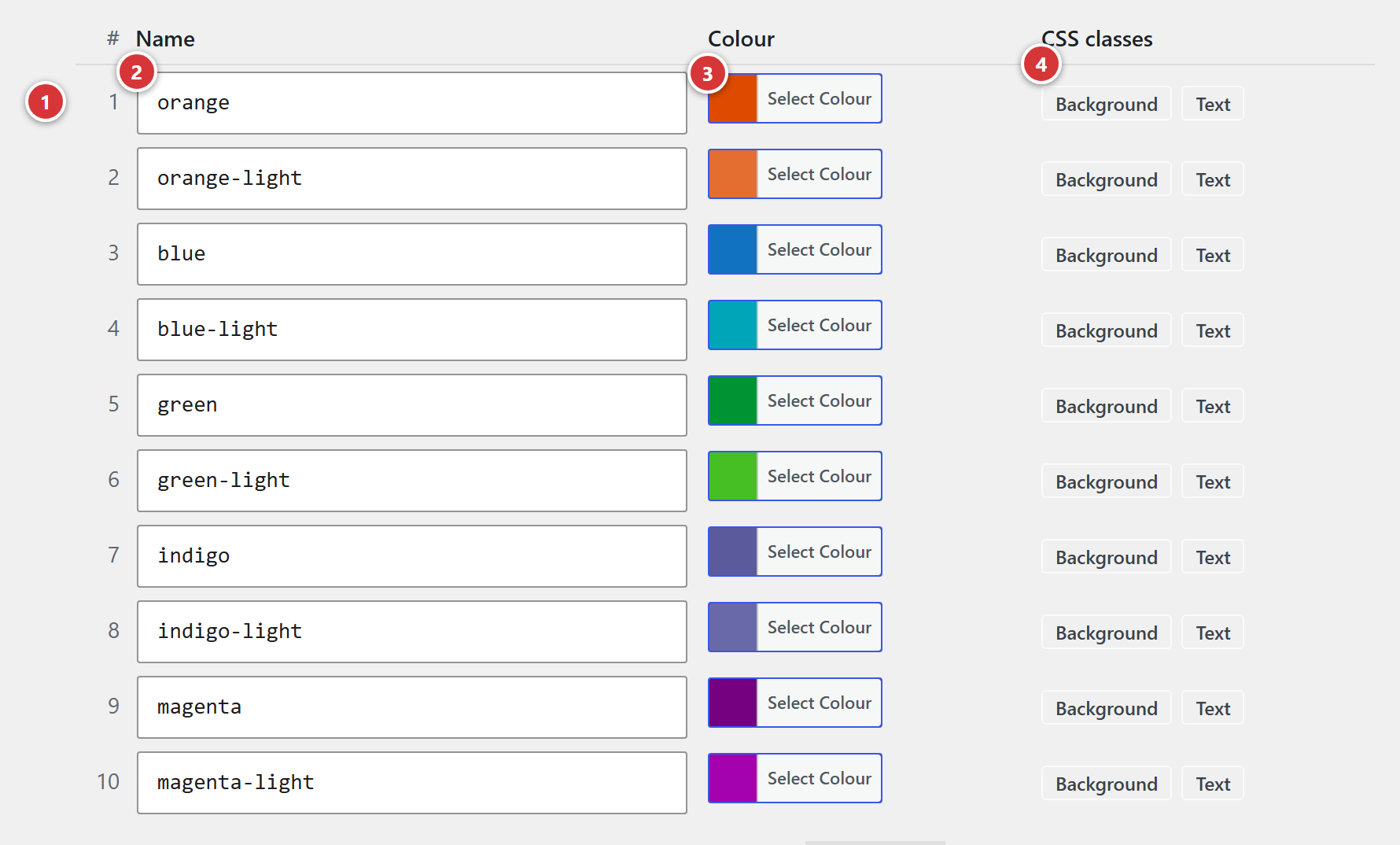
1 Slot number. 2 Name. 3 Colour. 4 Buttons for copying the CSS classes.
A slot with no colour is not used: it does not appear in any list of choices. You do not have to fill in all ten.
Number
The number never changes. It is what activities, pages and other settings remember: so you can change the colour or name of a slot without them losing their setting.
Name
The name is used to build the colour's CSS classes (see Background and Text buttons) and identifies it in the lists of choices.
- Write it in English: that is the custom in CSS, and the plugin's classes are in English too
(
background-color-…,text-color-…). For exampleorange,orange-light,dark-blue. - Use lower case letters, digits and hyphens, with no accents or spaces. A name entered
otherwise is converted on saving ("Dark Blue" becomes
dark-blue). - Left empty, the name is replaced by the slot number.
- Two slots cannot have the same name.
- Some names are reserved by the plugin and refused:
page,page-light,page-clair,default,defaut. - Avoid reusing the identifier of a post category (its "slug", visible in Posts > Categories): the two would contradict each other. A message warns you if this is the case.
Advice: name each colour after its hue
orange, blue, green… and add -light for its light version: orange-light. If the
colour scheme one day moves to a slightly different orange, change the colour, not the name.
Renaming a colour breaks the pages that use it
If orange becomes amber, the class background-color-orange no longer exists, and the
blocks in pages that used it lose their colour. The renaming is remembered: the Tools > Site
colours migration screen then offers to update all these pages. Only rename a colour if it is
really necessary.
Colour
Click the Select Color button to open the colour picker.
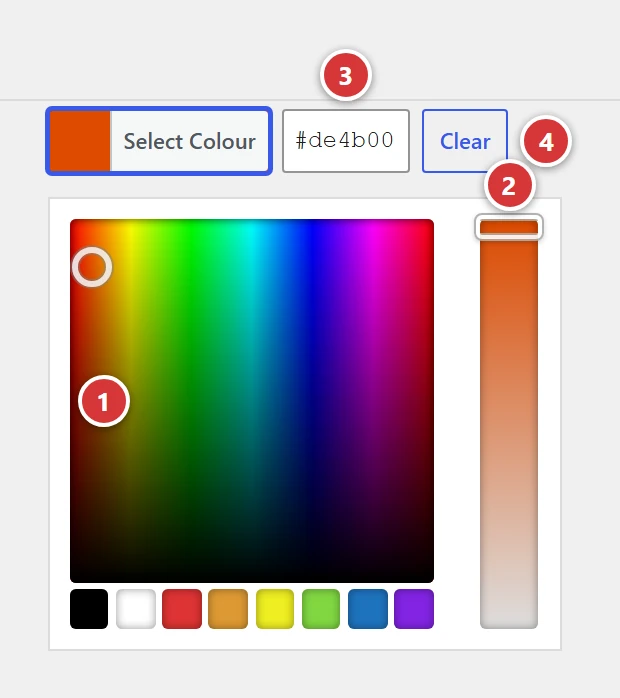
1 Choose the colour in the square.
2 Adjust its shade, lighter or darker, with the bar on the right.
3 Or paste the colour code given by the graphic charter: a # followed by six characters,
for example #e67e22.
4 Clear empties the slot.
Do not empty a slot that is still in use
Everything that used this colour loses it, but not in the same way:
- pages and roles go back to the default colour;
- blocks coloured with its Background or Text buttons are no longer coloured;
- activities keep their old colour in the calendar and the "Upcoming" blocks, but their colour choice appears empty on their screen: you will have to choose another one for them the next time you edit them.
Before emptying a slot, choose another colour everywhere it is used.
Background and Text buttons
These buttons are used to colour a block in a page built with Avada (container, column, text block, title…). They only appear on slots that have a colour.
They copy a CSS class: a small keyword you add to a block to change its appearance, here to give it a palette colour.
- Click Background to colour the block's background, or Text to colour its text. The class is copied: the button shows ✓ for a second.
- In the Avada builder, open the settings of the block to colour, General tab. For example a Container, that is a section of the page, to colour its background; or a Text Block, to colour its text.
- Paste the class into the CSS Class field, then save the page. To use several, separate them with a space.

| Button | Class copied | Effect |
|---|---|---|
| Background | background-color-orange |
block background in the orange colour |
| Text | text-color-orange |
block text in the orange colour |
Writing in white. On a coloured background, add the class text-white: all the text in the
block turns white. It is not part of the palette (it is not a colour of your choice, just
"white"): it has its own copy button, just below the palette; see White text.
Lightening a background. Add a second class, separated by a space: background-opacity-XX,
where XX is a percentage. For example, background-color-orange background-opacity-40 gives an
orange background at 40%.
Examples
| Avada block | In the CSS Class field | Result |
|---|---|---|
| Container (a section of the page) | background-color-blue text-white |
section on a blue background, text in white |
| Container | background-color-orange background-opacity-20 |
section on a very light orange background |
| Text Block | text-color-orange |
text in orange |
Old names
On older sites, you may come across texte-blanc in pages: it is the old name of text-white,
and it still works. For a new page, use text-white.
New name not yet saved
If you have just entered or changed a name, the buttons already copy the new class, but it will only work on the site after Save Changes.
White text
Just below the palette, a Copy button gives access to the text-white class: it turns the text
of a block white, for writing on a coloured background. As with the Background and Text buttons,
just click, then paste the class into the block's CSS Class field in Avada (see Background
and Text buttons).

This field is purely practical: text-white is not part of the palette and is not saved, so the
button works just as well for administrators as for editors.
The colour roles
A role gives a palette colour to a specific part of the site. Each list only offers the slots that have a colour, and takes on the colour of the chosen option.
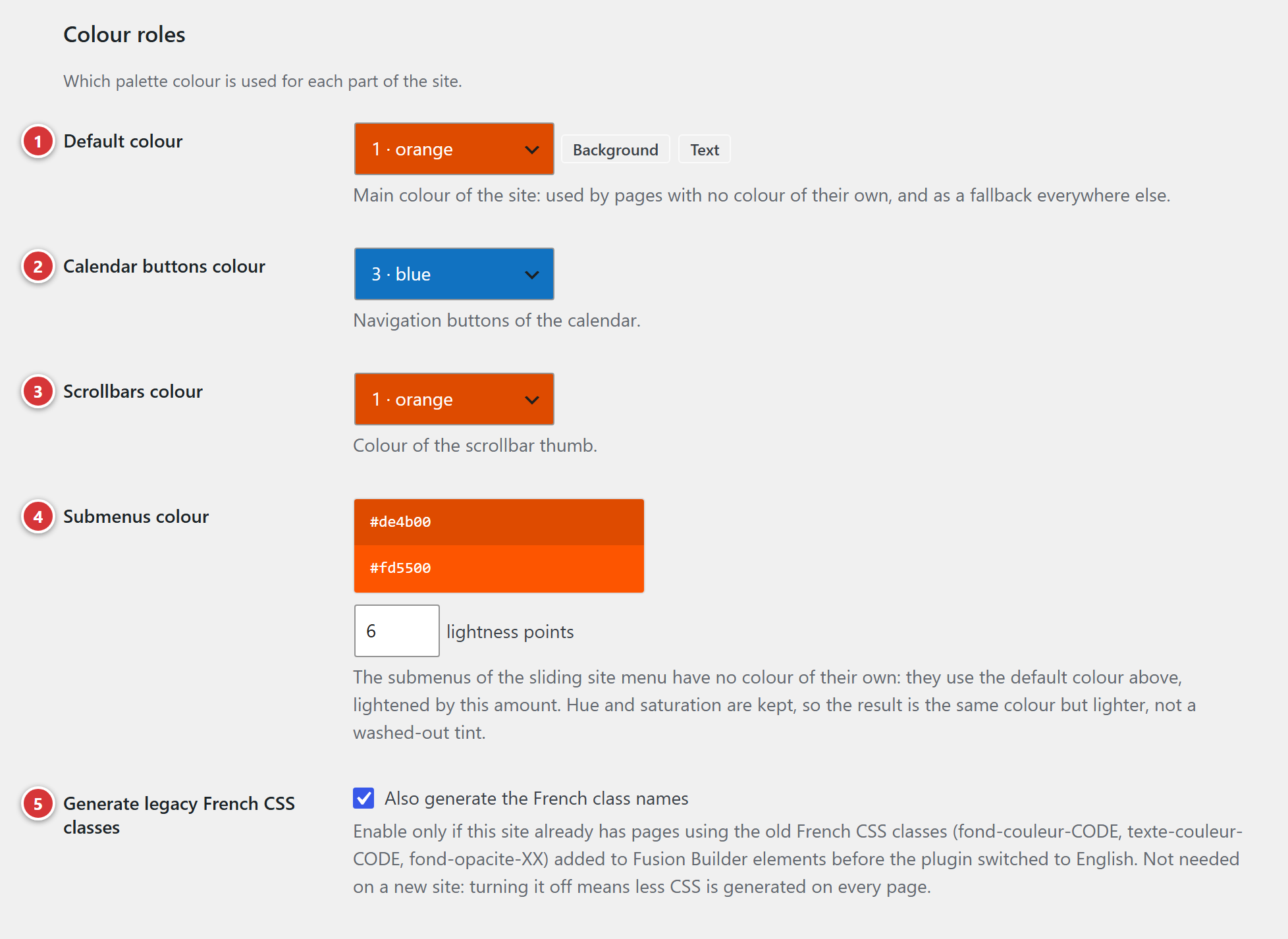
1 Default colour. 2 Calendar buttons colour. 3 Scrollbars colour. 4 Submenus colour. 5 Legacy French CSS classes.
Default colour
The site's main colour: it is the one that sets its dominant colour. It colours:
- the header and footer of every page;
- the site's menu (the sliding menu);
- pages that have no colour of their own (the "Page colour" setting of each page);
- form buttons and several layout elements;
- the "Upcoming" blocks and event pages, when the activity has no colour.
It also has its Background and Text buttons, which copy background-color-default and
text-color-default: a block coloured this way will follow the default colour even if you change
it one day.
Calendar buttons colour
The calendar's navigation buttons: previous period, next period and back to the current period. On hover, a button gets lighter; on click, it gets darker. The back button stays lighter as long as you are already on the current period.
Its label follows what is displayed: "Today" in the month view, "This week" in the week view, the one used on phones.

Scrollbars colour
The moving part of the scrollbars: the page's, and those of the strips that scroll horizontally (upcoming events, teachers' portraits).
Note
Firefox does not apply this colour and keeps its usual scrollbars.
Submenus colour
The submenus of the sliding menu have no colour of their own: they take the default colour, lightened by the number of brightness points shown. The menu and submenus thus stay in tune, even when the default colour changes.
- The preview shows the menu colour (top) and the submenus colour (bottom), as saved.
- 0: the submenus have exactly the menu colour, you can no longer tell them apart.
- 8 (default value): a discreet but visible difference.
- 100: the submenus become white.
The hue is kept: the result is the same colour, lighter, not a washed-out colour.
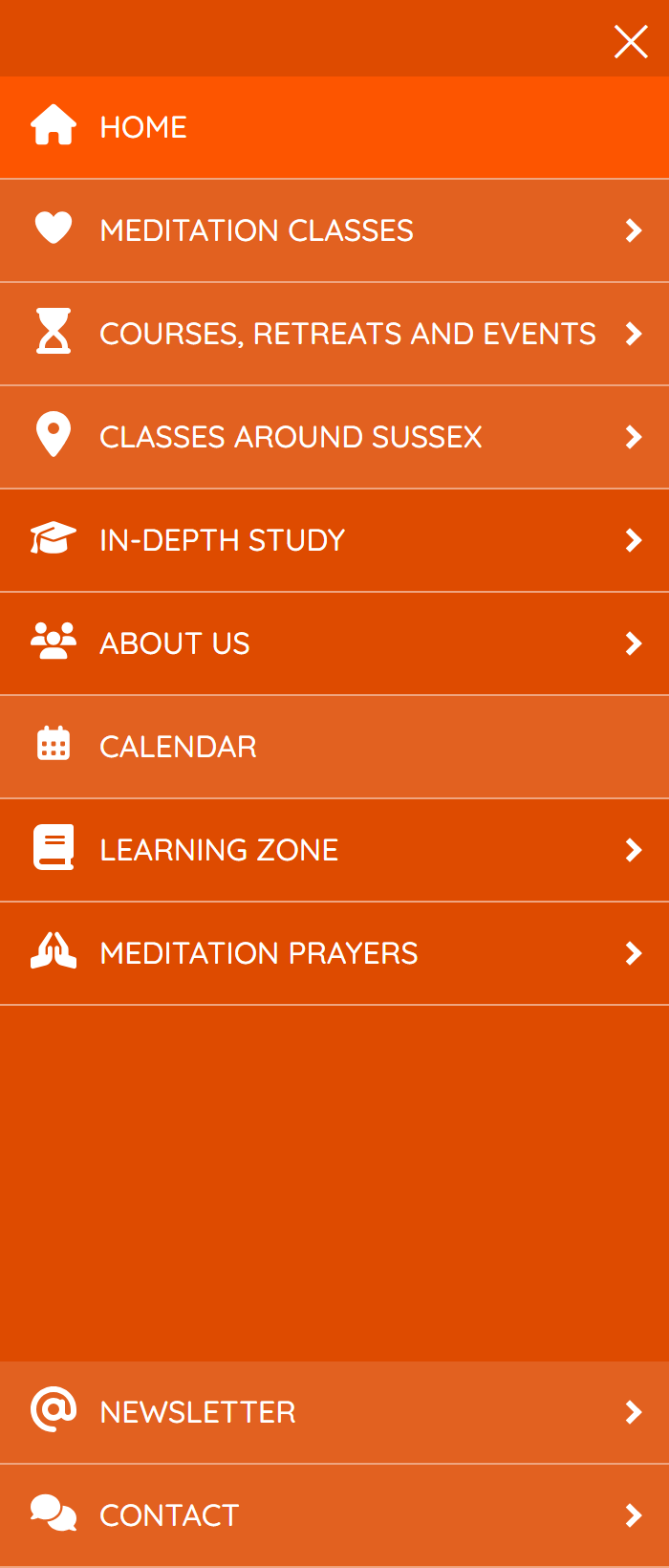
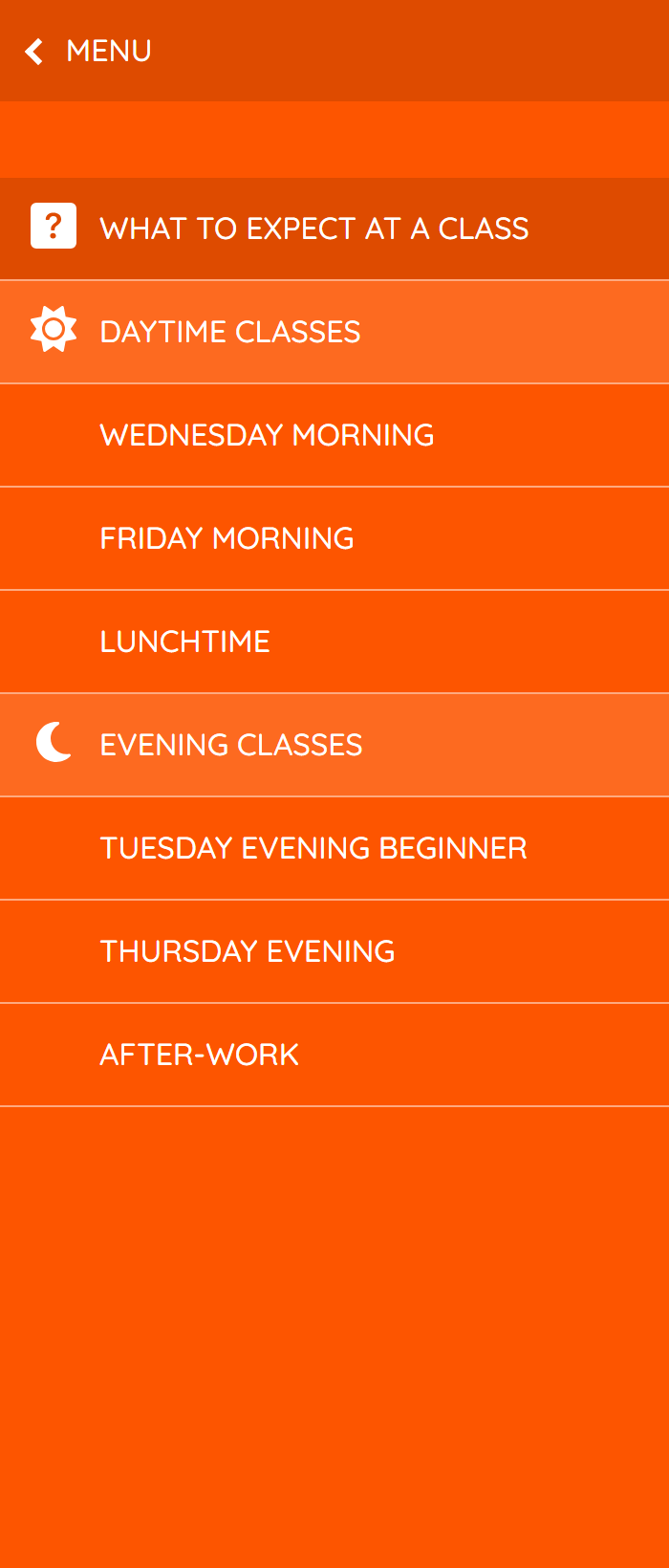
On the left, the menu, in the default colour. On the right, a submenu, lightened.
Legacy French CSS classes
Before the plugin switched to English, the colour classes had French names: fond-couleur-…,
texte-couleur-…, fond-opacite-…. The setting is called Generate legacy French CSS classes.
Technical setting
Only change it with the agreement of the site's webmaster.
- Leave the box ticked if pages on your site still use these classes. The Tools > Site colours migration screen lists all the classes found in the pages.
- Untick it on a new site, or once all the pages have switched to the English classes: every page of the site will be slightly lighter.
Save
For administrators only. Click Save Changes at the bottom of the screen. The message "Settings saved." confirms it.
A warning message may appear at the top of the screen:
| Message | What happened |
|---|---|
| "the name … is reserved by the plugin" | The name was replaced by the slot number. Choose another name. |
| "the name … is already used by colour …" | Two slots had the same name: the second one received its number instead. |
| "… is also the slug of a post category" | The name is accepted, but may conflict with the colour of that category. Choose another name. |
As soon as a colour changes, the site's cache is emptied automatically: visitors see the new colours on their next visit.
Frequently asked questions
I changed a colour, but the site has not changed. Check that you did click Save Changes, then reload the site page with Ctrl + F5 (on a Mac: Cmd + Shift + R): your browser may have kept the old version.
A block in a page has lost its background colour. Its CSS class no longer matches any colour: slot renamed or emptied, or an old activity class (activities no longer produce classes). The Tools > Site colours migration screen finds these classes and replaces them.
The colour I am looking for does not appear in the list of an activity or a page. The slot has no colour in the palette. Fill it in here, then save.
I cannot change the colours. That is normal if you are an editor: the colours are part of the graphic charter, and only administrators can change them. You can still copy their CSS classes with the Background and Text buttons.
Can I add an eleventh colour? No, the palette always has ten slots.
Can I use a colour outside the palette? Only in two cases: a page ("Page colour" > "Choose another colour") and an event ("Custom colour"). Keep this for exceptions: these colours will not follow changes to the palette.
Where these colours are chosen
| Screen | Setting |
|---|---|
| An activity | Color of the activity in the agenda and on the course and event pages |
| An event | Replacement color, only if it must differ from that of the activity |
| A page | Page colour, in the box on the right of the edit screen |
| A post category | Category colour |
For the overall logic, see The site colours.