Shortcodes in Avada pages
Part of what the site's pages show (the calendar, the "Upcoming" blocks, the centre's contact details…) is not written in the page itself: it is inserted there by a shortcode. This page explains what that is and how to use it.
What is a shortcode?
A shortcode is a keyword in square brackets, placed in the content of a page. On the site, the visitor never sees the keyword: they see what the plugin puts in its place.
| In the page | What the visitor sees |
|---|---|
[calendar] |
the events calendar |
[upcoming id="2222"] |
an "Upcoming" block, which lists the next sessions |
[info name="phone"] |
the centre's phone number, clickable |
[icon name="tabler:phone"] |
a phone icon, in the middle of the text |
[year] |
the current year, for example in the footer |
[youtube] |
the YouTube logo and name, in red |
The advantage: the information is entered in one place only. The phone number is changed in
Settings > General, and all the pages that show it through
[info name="phone"] follow by themselves.
A shortcode's settings
Some shortcodes need extra detail, written after their name in the form name="value":
[info name="phone"] shows the phone number, [info name="address"] the address.
Copy these settings exactly: straight quotation marks ("), no spaces around the = sign. The
safest way is to copy the shortcode from where the screen offers it. For example, each "Upcoming"
block shows its own shortcode, ready to copy, in the Shortcode to copy field: one click in the
field copies it. For icons, use the Settings > Icons menu.
Where to put them in Avada
In the Avada builder, a shortcode is pasted into a Text Block, where its content should appear. Save the page, then view it on the site to check the result: in the builder, you often see only the keyword.
The shortcode shows up as plain text on the site?
The name is probably misspelt (a capital letter, a hyphen instead of an underscore): WordPress does not recognise it and leaves it as it is. Copy it again from the screen that offers it, or from this page.
English names and old French names
The plugin's shortcodes have been renamed in English: [upcoming] used to be called [a_venir],
[weekly_timetable] used to be called [AgendaHebdo]. The old names still work, and will keep
working: existing pages do not need to be changed.
For a new page, use the English name, whatever the language of the site.
| Name to use | Old name | What it shows |
|---|---|---|
[upcoming id="…"] |
[a_venir id="…"] |
an "Upcoming" block (see Upcoming blocks) |
[weekly_timetable] |
[AgendaHebdo] |
the weekly timetable (see Weekly timetable) |
[teachers] |
[enseignants] |
the list of teachers |
[teachers_portraits] |
[enseignants_portraits] |
the teachers' portraits |
[home_image] |
[ImageAccueil] |
the home image |
[global_element name="…"] |
[element_global nom="…"] |
a global element (see Global elements) |
[info name="…"] |
[info nom="…"] |
a piece of the centre's general information |
[icon name="…"] |
[icone nom="…"] |
an icon (see Icons) |
[year] |
[annee] |
the current year |
[page_name] |
[NomPage] |
the page title |
[youtube] |
(none) | the YouTube logo and name (see The YouTube logo) |
[calendar] and [youtube] have no old name.
The centre's general information
The [info] shortcode shows a piece of information entered in Settings > General. The name
setting says which one:
| Shortcode | Shows |
|---|---|
[info name="name"] |
the centre's name |
[info name="address"] |
the address |
[info name="zip"] |
the postcode |
[info name="city"] |
the town or city |
[info name="access"] |
how to get there (transport…) |
[info name="maps_link"] |
the Google Maps link |
[info name="phone"] |
the phone number, clickable on a mobile phone |
[info name="email"] |
the email address |
If the information has not been filled in under Settings > General, the shortcode shows nothing.
Icons
The [icon name="…"] shortcode inserts an icon in the text of a page: a star, a phone, an
envelope… The icon takes the size and colour of the text around it.
You do not need to know the icon names: the Settings > Icons menu shows them all and provides the shortcode ready to paste.
- Open Settings > Icons.
- In the list of libraries, preferably choose Font Awesome — Solid. Then type a word in the
Search an icon… field (in English, for example
phoneorcalendar). - Click the icon you like: a preview appears, with its shortcode in the Shortcode (click to copy) field.
- Click in this field: the shortcode is copied.
- Paste it into the Avada Text Block, where the icon should appear, then save the page and check it on the site.
The icons come from several libraries: Font Awesome (Solid, Regular, Brands), Tabler Icons,
Lucide, Phosphor, Material Symbols and Bootstrap Icons. The copied shortcode shows the one you chose,
before the colon: [icon name="tabler:star"].
Prefer Font Awesome — Solid
This is the library to use first: it is the one used by the old shortcodes, and it is the only
one where the search understands keywords. Typing tea, for example, gives you a steaming
mug (mug-hot), even though the word is not in the icon's name.
If you really cannot find your icon, you can search the other libraries, but the search there
is less flexible: it only looks at the icon's name. Try several similar words (mug,
cup, coffee…).
The old icon shortcodes keep working
A shortcode without a library, such as [icon name="star"], still shows the matching Font
Awesome icon: existing pages do not need to be changed. For a new page, copy the shortcode
offered by Settings > Icons.
The same choice of icons is offered elsewhere, without a shortcode to paste:
- in an activity's record, the Icon of the activity field (see Activities);
- in the text of a home image, the Insert an icon button, which places the shortcode where the cursor is.
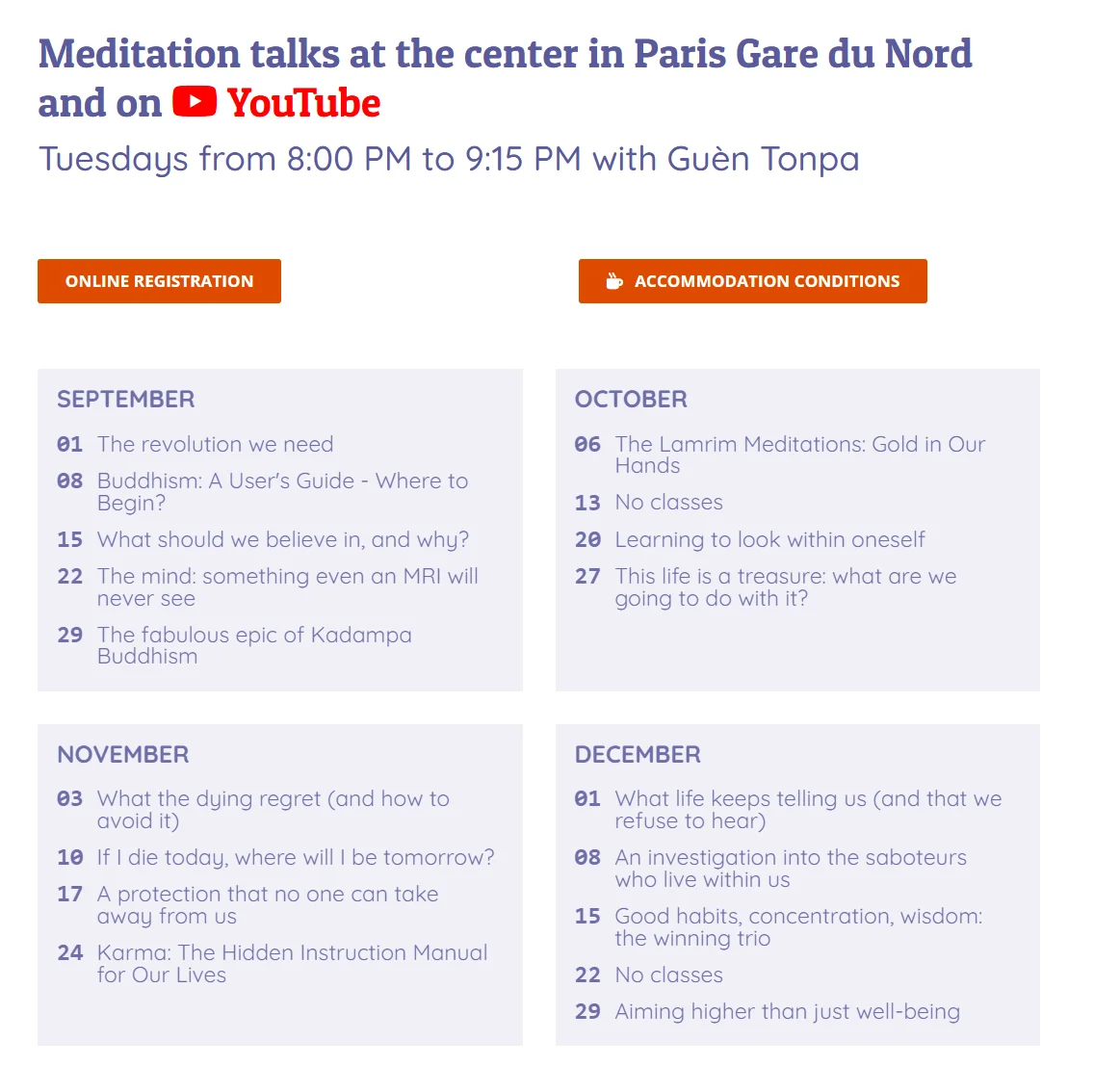
The YouTube logo
The [youtube] shortcode has no settings: it shows the YouTube logo followed by the word
"YouTube", all in red. It is used to refer to YouTube in a text, for example to say that a
session is streamed online, without having to write the name as plain text. Paste it into the
Avada Text Block, where you want it. See an example: the logo in the title of an event.
Template shortcodes
Other shortcodes are used to build the framework of the site: header ([template_header]), footer
([template_footer]), parts of the event pages ([event_teacher], [event_schedule],
[event_registration]…). They are set up by the webmaster in the layout templates, once and for
all. You should not normally need to touch them.
When a shortcode shows nothing
A correctly written shortcode may show nothing:
- the information it shows has not been filled in (an empty address, an "Upcoming" block with no upcoming session);
- the module that provides it is not active on your site (see The features). The shortcode is then replaced by nothing, rather than shown as plain text.
An "Upcoming" block with the wrong number shows an error message instead of the list: copy its shortcode again from the block's Shortcode to copy field.
Going further
- Show upcoming events on a page: step by step.
- "Upcoming" blocks and the cache: why the list stays up to date.
- The site colours: CSS classes, the other way to act on an Avada block.