"Upcoming" blocks
Where: Upcoming menu of the administration. Who: editors and administrators.
An "Upcoming" block is a list of the next sessions, which you place on a page of the site (the home page, the page of an activity…). In it you set which sessions to show and how to present them. Visitors then see a list that is always up to date: "today at 7 pm", "tomorrow", a past session disappears by itself.
You can create as many blocks as you like: for example a block of the next classes for the home page, and a block of retreats for the page of a retreat.
The Upcoming menu only exists if the Upcoming events module is active on your site (see Understand the site).
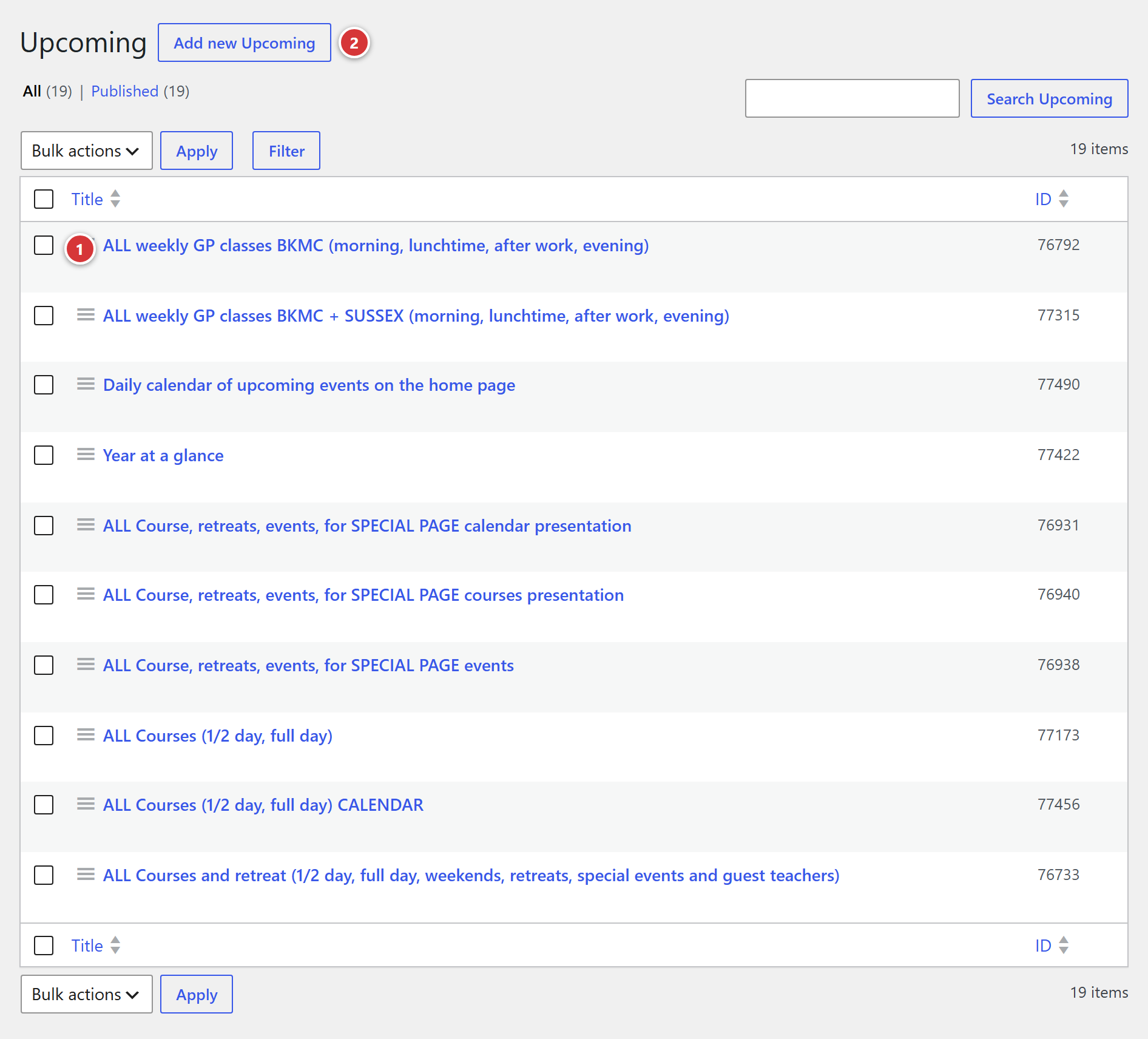
1 The title of a block: click it to edit the block. 2 Add new: create a new block.
Understand it in one minute
flowchart LR
    B["“Upcoming” block<br>set in the administration"] -->|shortcode| P["A page of the site"]
E["Sessions of the events<br>in the calendar"] --> B- You create a block and set it up (which activities, how many sessions, which layout).
- The block has a shortcode: a small code, in the form
[upcoming id="123"]. You copy it and paste it into the page you want. See Shortcodes in Avada pages. - On the page, the code is replaced by the list of the next sessions.
The list comes from the published events of the calendar: an event in draft is not in it. Nothing is entered in the block itself.
To find out why the list stays up to date despite the site's memory, see "Upcoming" blocks and the cache.
Create or edit a block
- In the Upcoming menu, click Add new (or the title of a block to edit).
- Give the block a title: it is only used to recognise it in the list, visitors do not see it. For example "Home: next classes".
- Set the fields described below.
- Click Publish (or Update).
- Click in the Shortcode to copy field: the code is copied, paste it into the page.
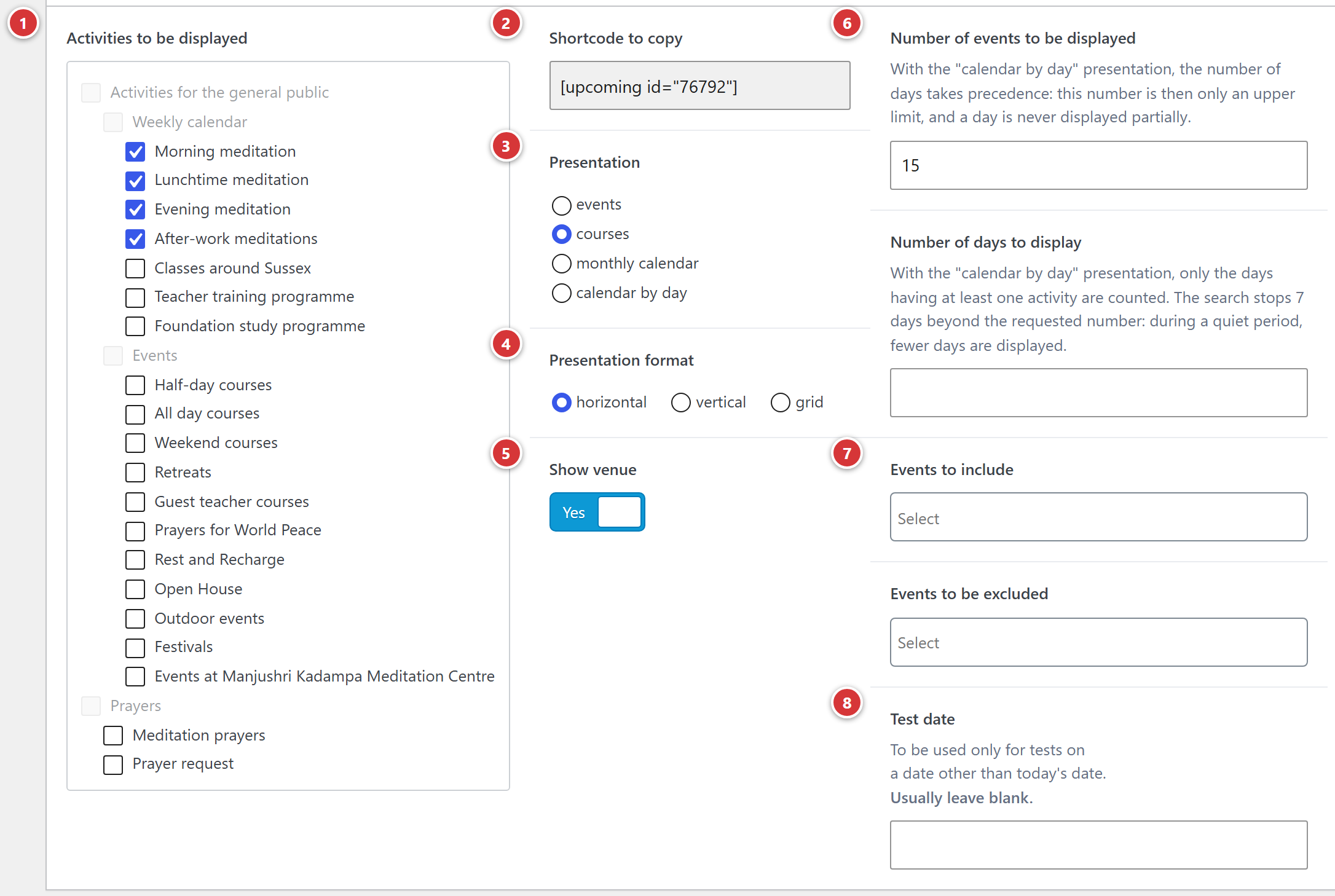
1 Activities to be displayed. 2 Shortcode to copy. 3 Presentation. 4 Presentation format. 5 Show venue. 6 Number of events to be displayed and Number of days to display. 7 Events to include and Events to be excluded. 8 Test date.
1 Activities to be displayed
Tick the activities whose next sessions you want (Class, Retreat, Workshop…). If none is ticked, and no event is to be included (see below), the block shows the sessions of all the activities.
2 Shortcode to copy
The code to paste into the page, in the form [upcoming id="123"]: the number is the number of
the block. This field is read-only: you do not change it. Just click in it and the code is
copied to the clipboard (the field turns green for a moment to confirm): no need to select it or
press Ctrl+C.
The number is the block's
If you delete a block and then create another, the number is different: update the shortcode in the pages that used it. A shortcode whose number does not match any block shows, instead of the list, the message: "[upcoming] shortcode misconfigured: no Upcoming block found for id…".
3 Presentation
Four ways of showing the sessions:
| Presentation | What visitors see |
|---|---|
| events | One card per session, with its image and its title. To highlight the next classes, retreats or weekends. |
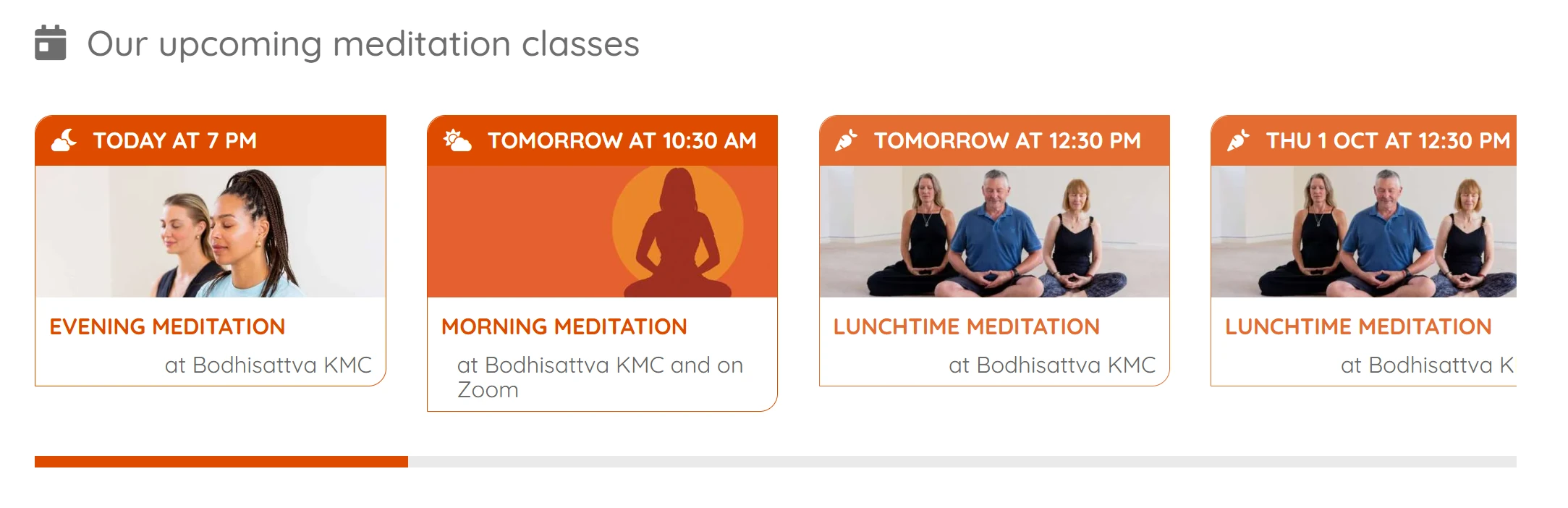
| courses | One card per session too, centred on the time: the date and time at the top, then the image, the name of the activity and the venue. Suited to regular classes. |
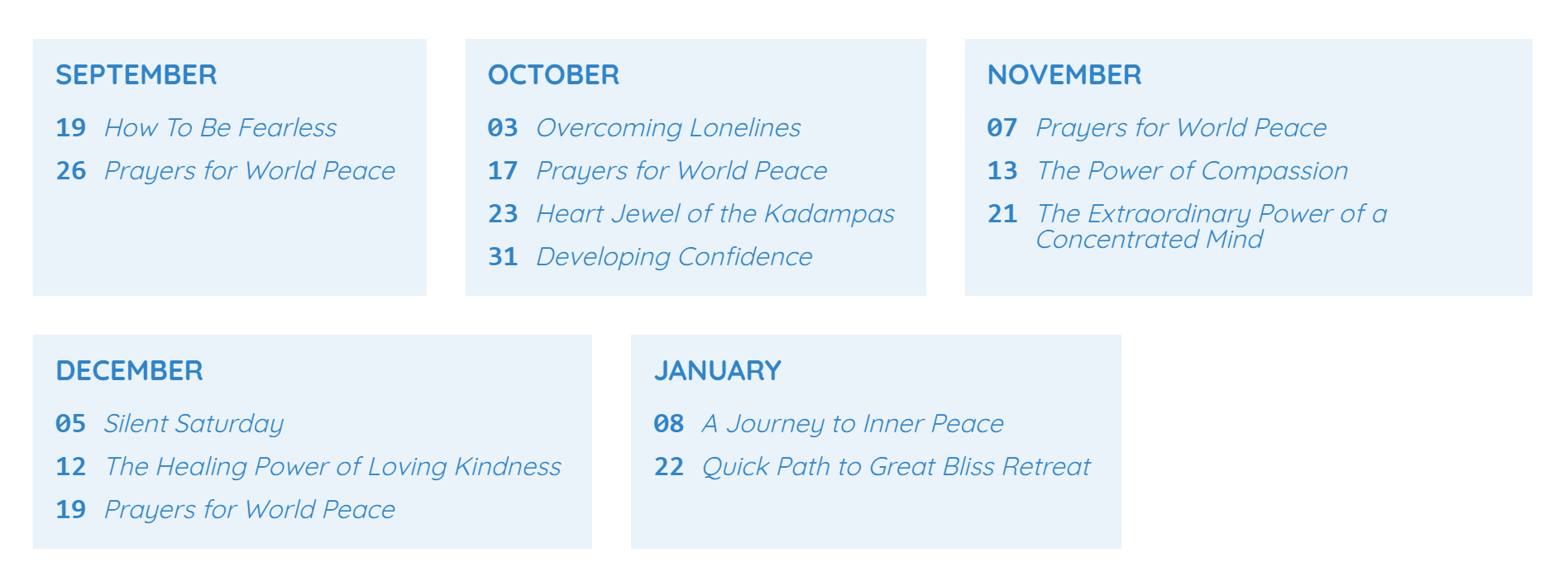
| monthly calendar | One frame per month, with the day then the title of each session. No image. |
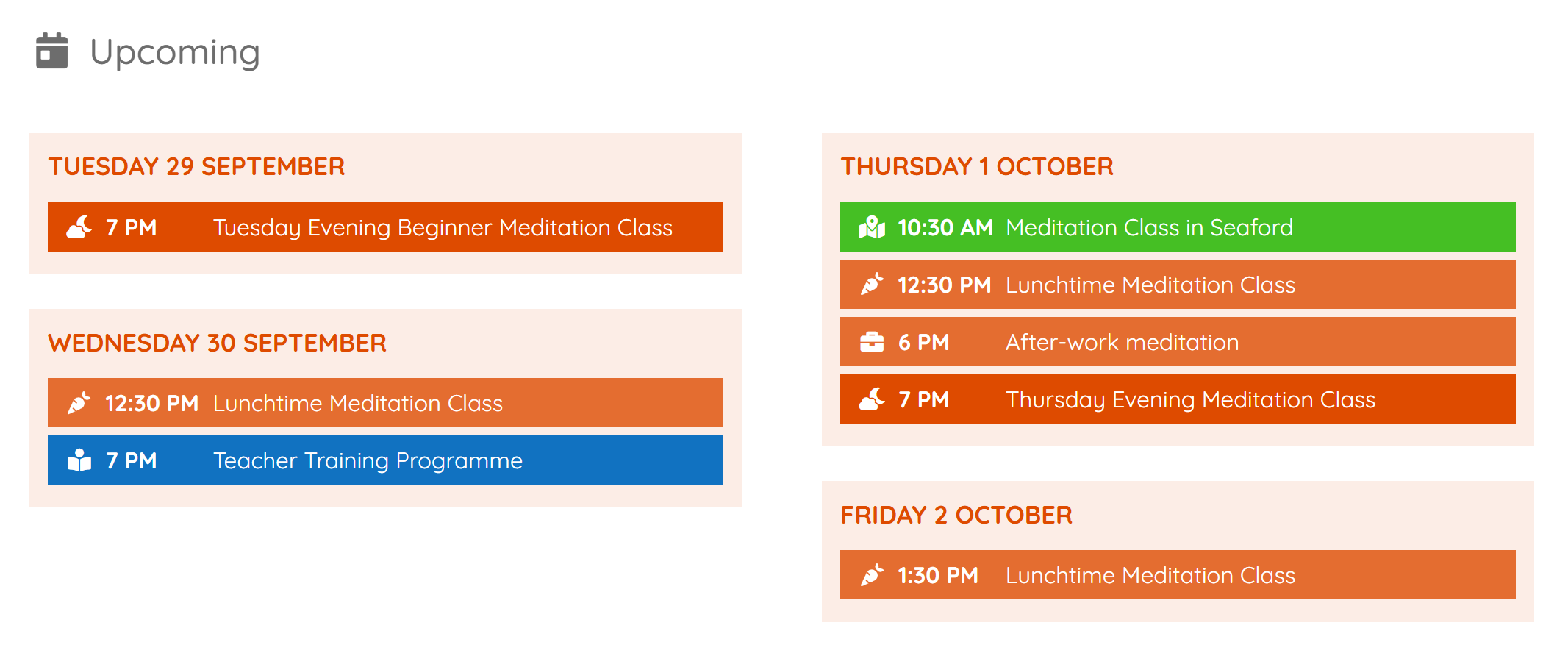
| calendar by day | One block per day, headed "Monday 5 October", which groups the sessions of that day, each on its activity colour, with its icon and its time. |
Events
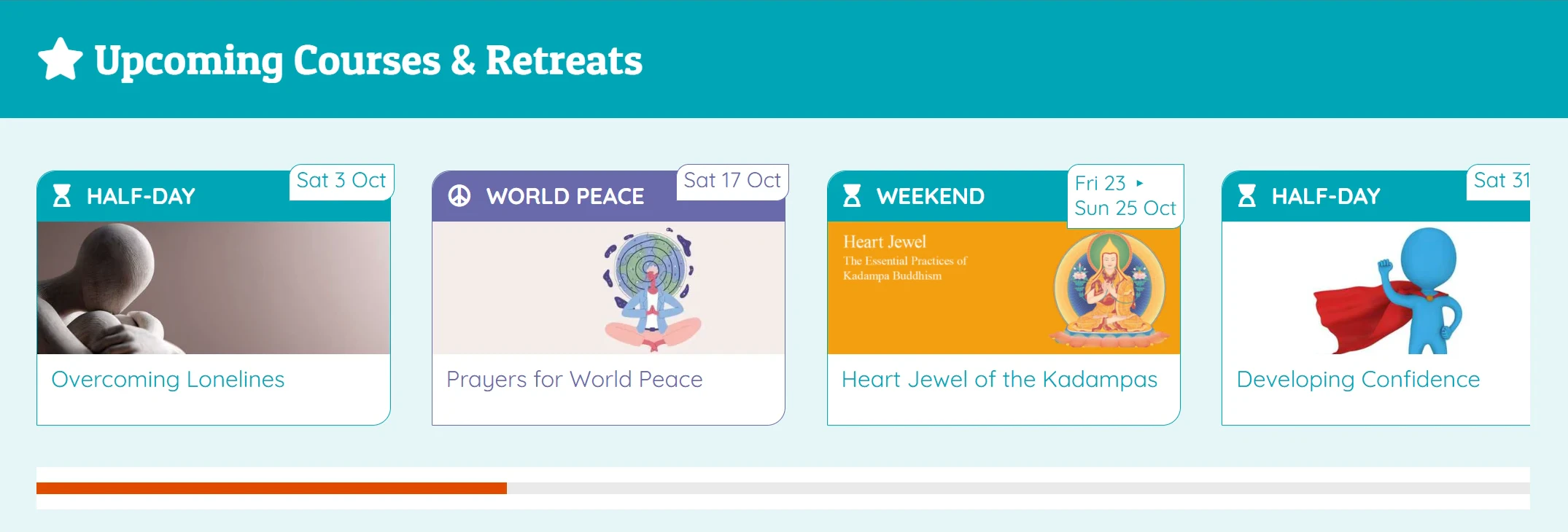
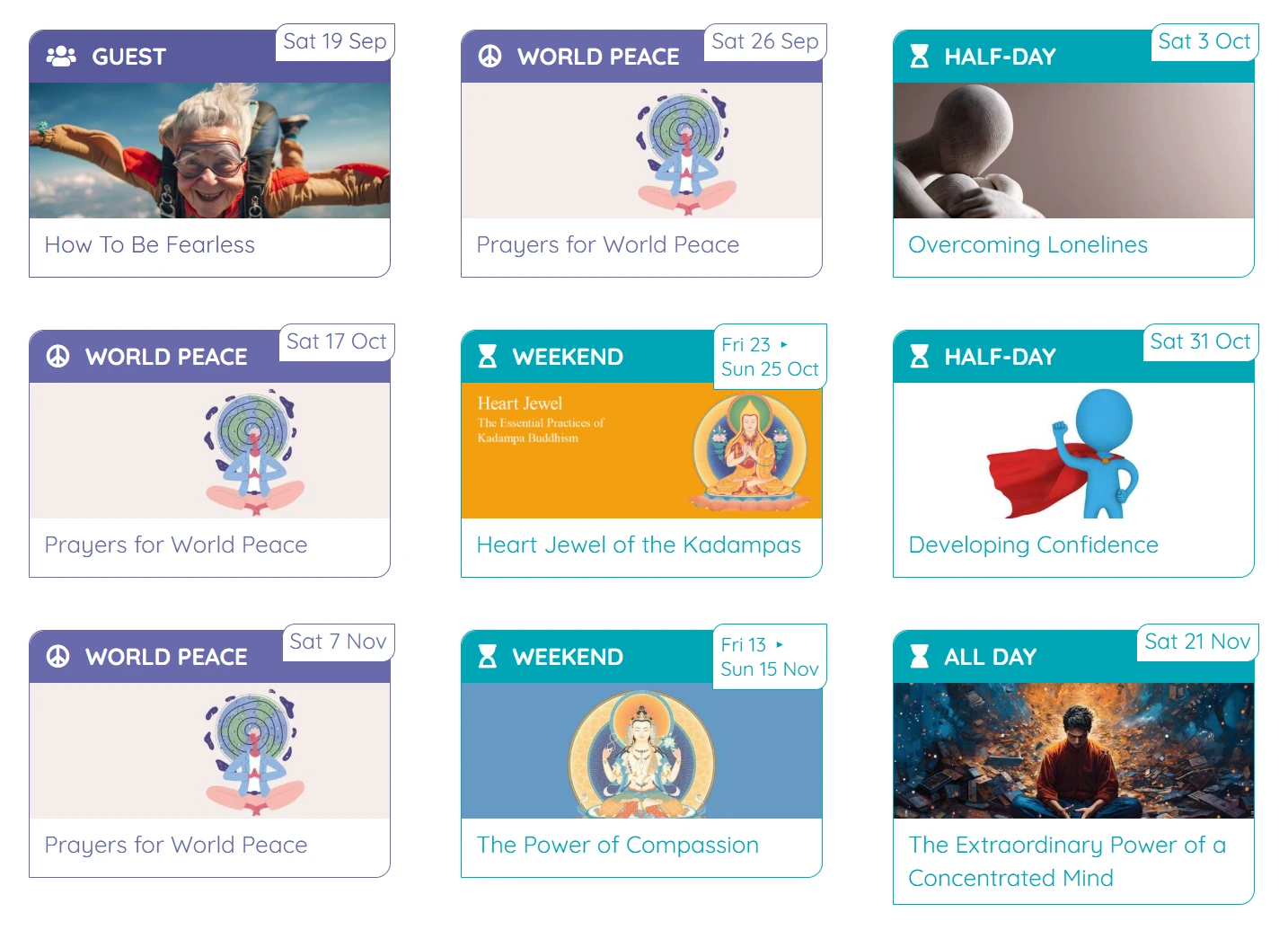
One card per session, with its image and its title. The coloured band at the top of the card changes according to the content of the block.
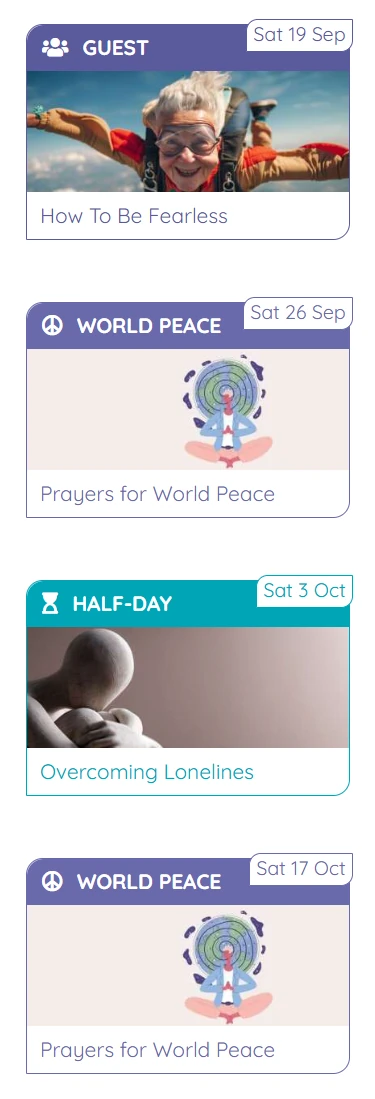
The block mixes several activities (class, retreat, weekend…): the band carries the name of the activity and the date goes into a badge at the top right. A weekend or a retreat shows its start and end dates there.
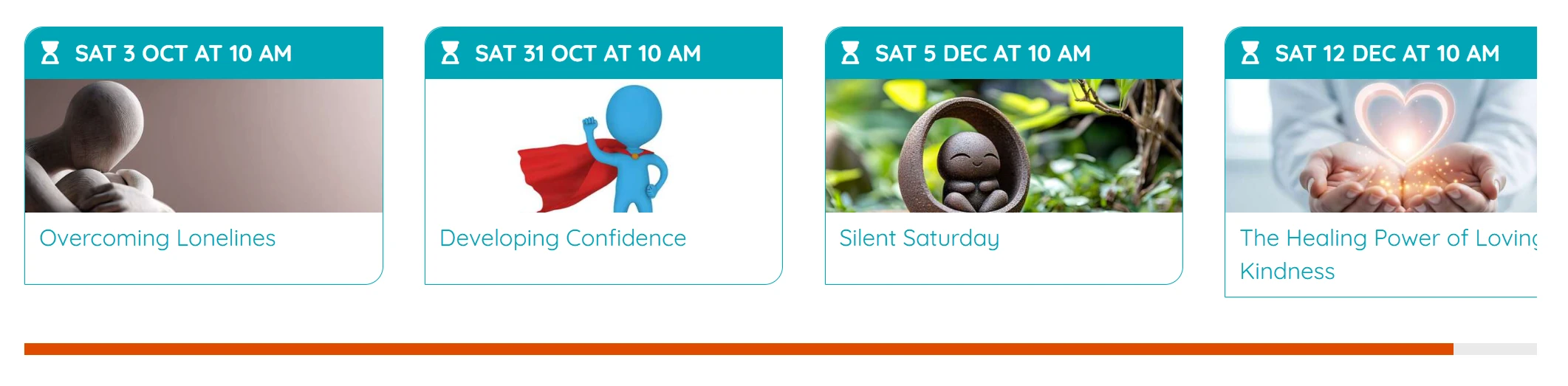
The block only shows one activity: its name would always be the same, so the band carries the date and time in full, without a badge.
Courses
One card per session too, centred on the time: the date and time at the top, then the image, the name of the activity and the venue. Suited to regular classes.
Calendar by day
One block per day, headed "Monday 5 October", which groups the sessions of that day, each on its activity colour, with its icon and its time.
Monthly calendar
One frame per month, with the day then the title of each session. No image.
The dates
In the events and courses presentations, the date is written in words: "today at 7 pm", "tomorrow at 10 am", then "Wed 7 Oct at 7 pm". For an event that lasts the whole day, no time is shown. An event over several days (retreat, weekend) shows its start and end dates.
4 Presentation format
For the events and courses presentations only. This field does not appear for the calendar presentations.
Horizontal
The cards follow each other in a row, with a horizontal scroll bar if there are many of them: the last card may be cut off, the visitor scrolls to it.
Vertical
The cards are stacked one under the other.
Grid
The cards are arranged in a grid.
5 Show venue
Switch, on by default: the venue of the session is shown, under the image in the events presentation (a card without an image shows no venue), next to the name of the activity in the courses presentation. This field does not appear for the calendar presentations.
6 Number of events to be displayed
The maximum number of sessions in the list (15 by default). Left empty, there is no limit.
With the calendar by day presentation, this number is only an upper limit: the number of days is what counts, and a day is never cut in two.
6 Number of days to display
The length of the period shown, starting from today. For example 30: only the sessions of the next 30 days are listed. Left empty, all upcoming sessions can be listed (within the limit of the number of events).
With the calendar by day presentation, this number counts the days that contain at least one session, not the days of the calendar: 5 gives the next five days on which something happens. During a quiet period, the block may show fewer than requested: the search stops one week beyond the period.
7 Events to include
To add particular events to the list, whatever their activity. Choose them in the list. They are added to the ticked activities: the block shows the sessions of the ticked activities and those of these events.
7 Events to be excluded
To remove particular events from the list (a class cancelled for the season, an event already highlighted elsewhere). They disappear from the block, even if their activity is ticked.
8 Test date
Leave this field empty
This field is only used to test the block at a date other than today (for example to see what it will show next week). If left filled in, the block behaves as if we were on that date, for all visitors. Empty it after the test.
When there is nothing to show
If no session matches the settings:
- the events and courses presentations show the message "We don't have any upcoming events right now... Check back soon!";
- the calendar presentations show nothing at all.
Put a block on a page
Paste the shortcode at the place you want in the page, in the Avada builder (a text or code block). Step by step: Show upcoming events on a page.
Frequently asked questions
The block shows nothing. Check that published events have upcoming sessions, that their activity is ticked in the block (or that none is ticked), that they are not in Events to be excluded, and that the Test date is empty.
The block shows the "misconfigured" error message. The number of the shortcode does not match any block: copy the shortcode again from the block's screen.
An event I have just created does not appear. Check that it is published and that it has a main session in the sessions calendar (see Events). The blocks are refreshed straight away when an event is saved.
Can I put the same block on several pages? Yes: paste the same shortcode into each page.
How do I change the order of the sessions? They are always sorted by date, from the nearest to the furthest.