Teachers
Where: Teachers menu of the administration. Who: administrators and editors. The headings of the public page are set in Settings > Advanced (administrators).
This is where you keep the centre's list of teachers. It is used in two places:
- on the edit screen of each event, where you choose the teacher who leads it;
- on the public teachers page, where each teacher appears with their portrait and introduction.
As for activities and venues, the screen is made up of an add form on the left and the list of teachers on the right.
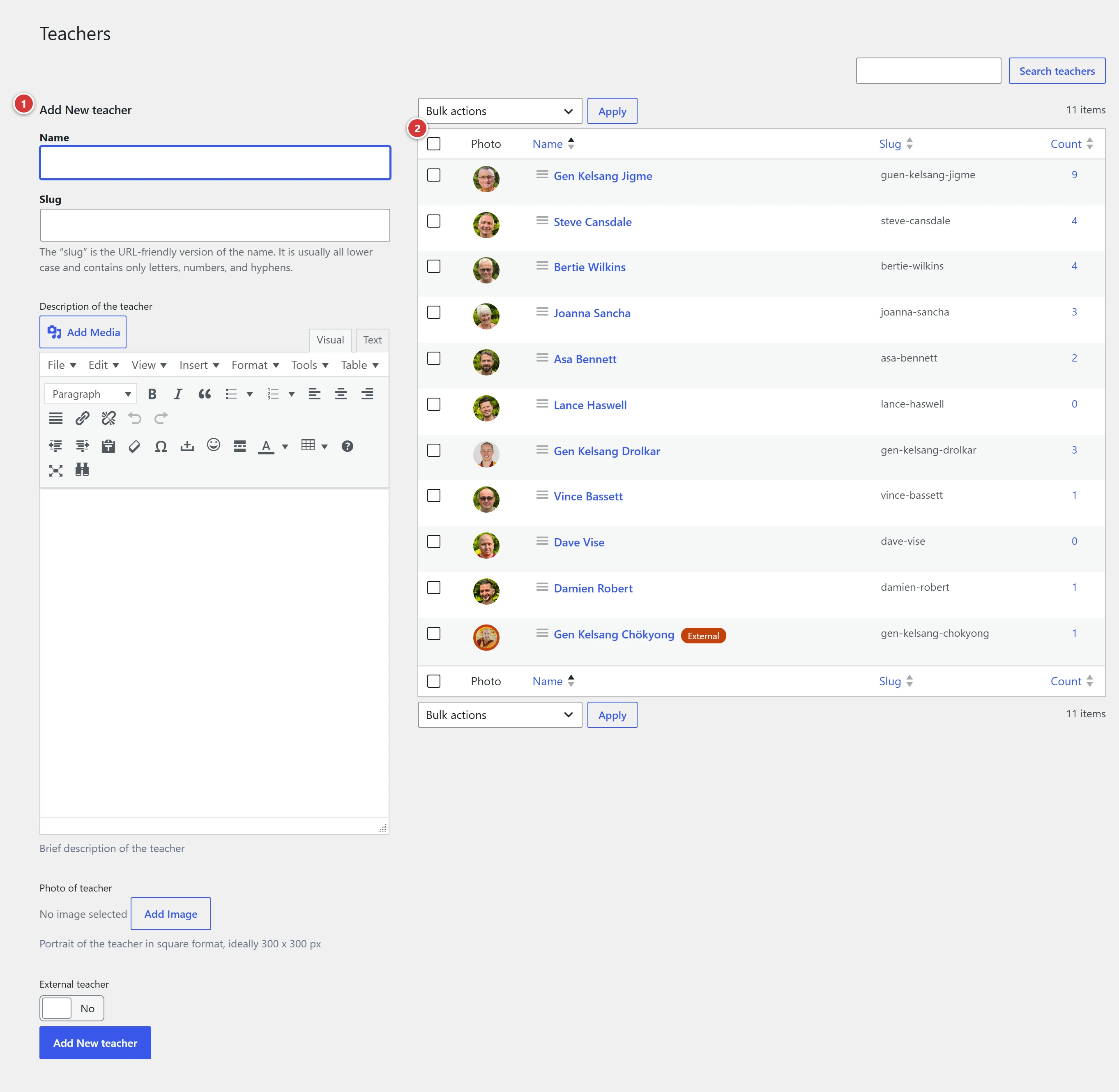
1 Add form. 2 List of teachers: hover over a line to Edit or Delete.
The edit screen of a teacher
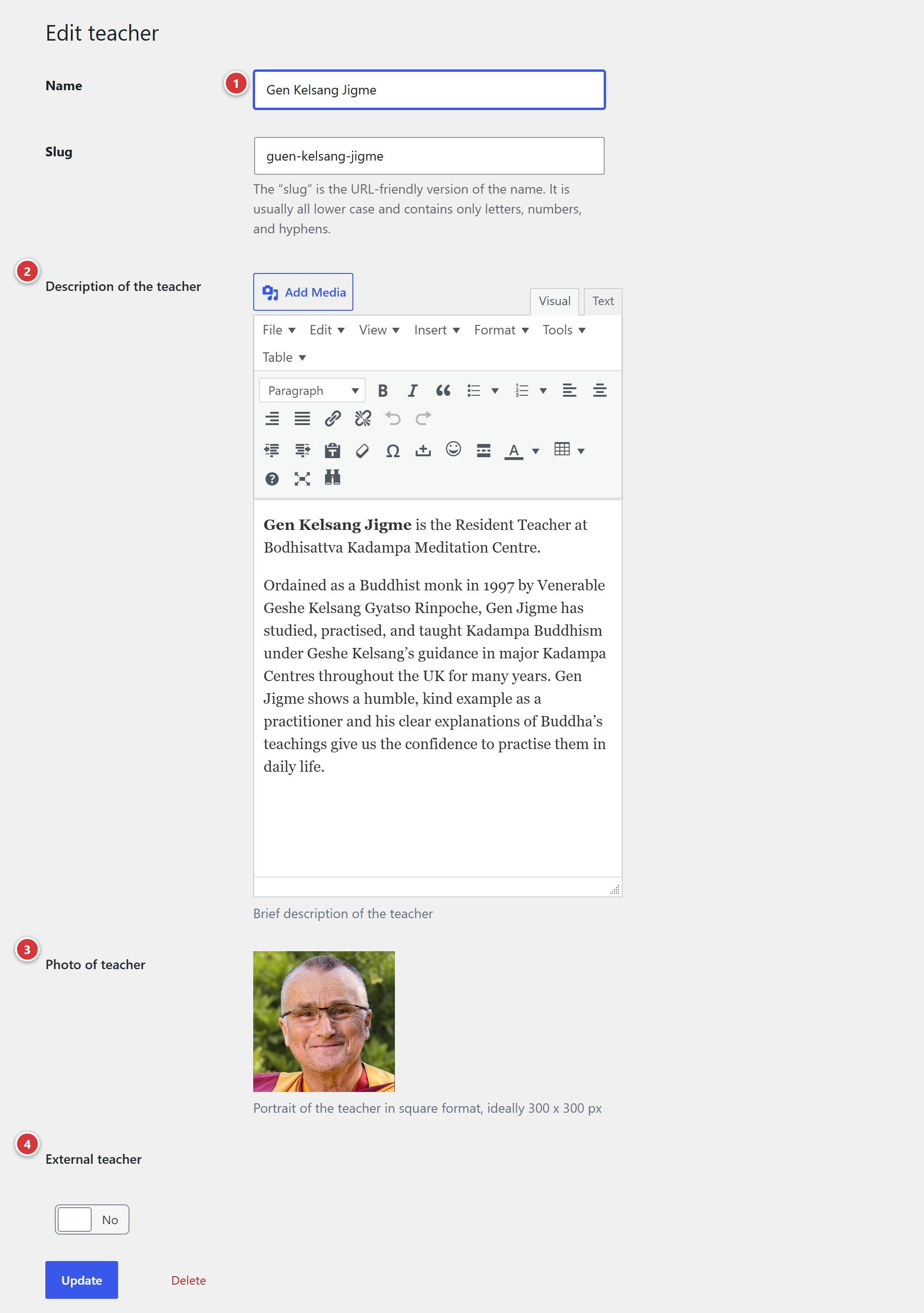
1 Name. 2 Description of the teacher. 3 Photo of teacher. 4 External teacher.
Name
The teacher's name, as visitors will see it in events and on the public page. The WordPress Slug and Description fields can be left as they are: the introduction is entered in Description of the teacher.
Description of the teacher
The introduction, shown next to the portrait on the public teachers page. The text editor lets you format it and add links, as in a page.
Photo of teacher
The portrait. Choose or upload a square image, ideally 300 x 300 px.
External teacher
Tick the box for a guest teacher, who is not part of the centre. It decides where the teacher appears on the public page (see below).
What visitors see
The public teachers page
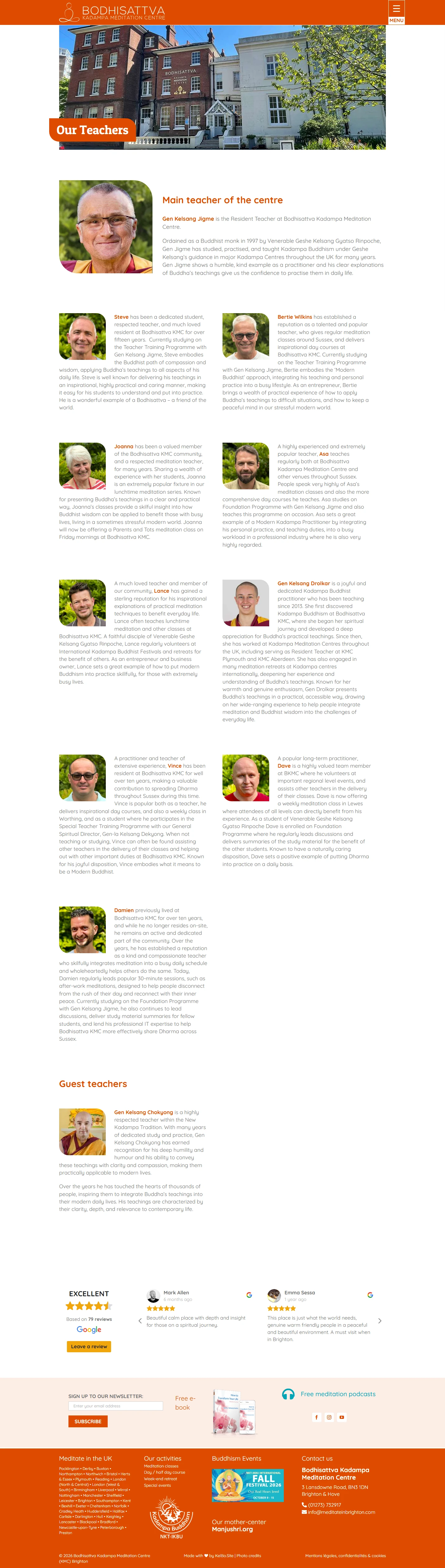
It shows the list in two blocks:
- The centre's teachers (External teacher box unticked). The first in the list is highlighted under the heading Main teacher of the centre: their photo is larger. The others follow.
- The guest teachers (box ticked), under the heading Guest teachers.
So the centre's first teacher is the one at the top of the list: to change the main teacher, move another teacher to the first position by drag and drop in the list (see Order of the lists).
To see the overall result (main teacher, other teachers of the centre, then guest teachers), open the full page of a demonstration centre:
Tip: make the teacher's name stand out
In Description of the teacher, put the name (or first name) in bold. On the public page, this word is then shown in colour and stands out from the rest of the introduction.
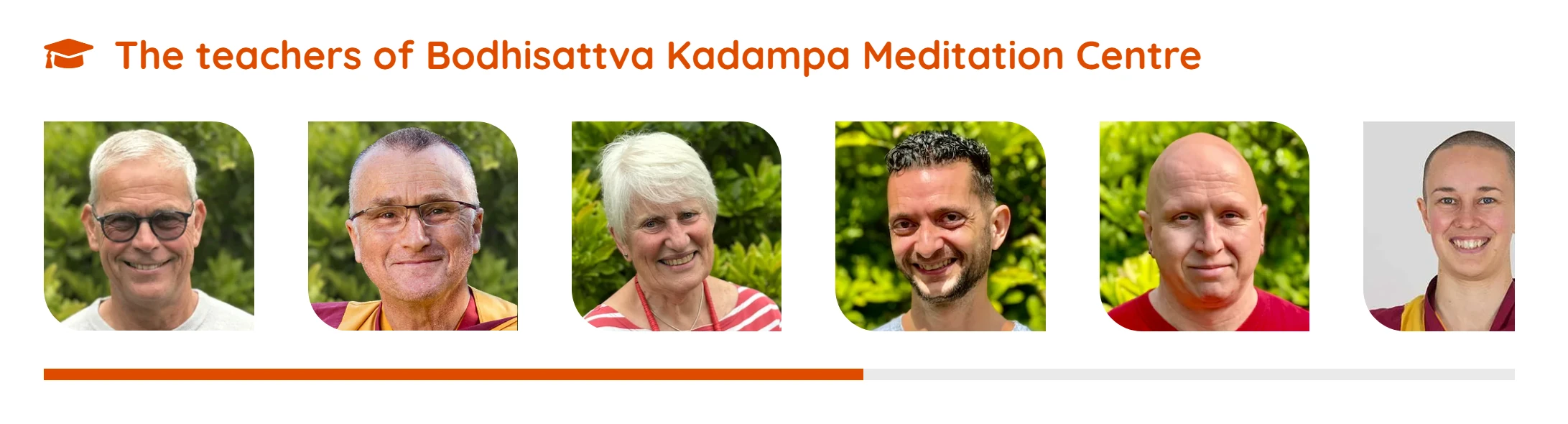
The carousel of portraits
The portraits of the centre's teachers can also scroll in a carousel on any page, for example the home page. The order changes each time it is shown, and each portrait links to the teachers page.
Change the page headings
The headings Main teacher of the centre and Guest teachers can be replaced by administrators, in Settings > Advanced, Teacher's page texts section (see Advanced):
| Field | Heading concerned |
|---|---|
| Resident teacher title | "Main teacher of the centre" |
| Guest teachers title | "Guest teachers" |
A field left empty keeps the original heading, shown greyed out in the field.
Edit or delete a teacher
- Changes made on a teacher's edit screen update the public page and all of that teacher's events.
- Deleting a teacher does not delete their events, but they no longer show a teacher. Before deleting, check that you do not need them.