General
Where: Settings > General menu. Who: editors and administrators.
This is where you enter the centre's basic information once: its name, address, telephone number, email… The pages of the site pick it up where needed. When the address or the telephone number changes, you correct it here only, and all the pages concerned are up to date.
The Settings > General menu only exists if the Layout module is active on your site (see Understand the site).
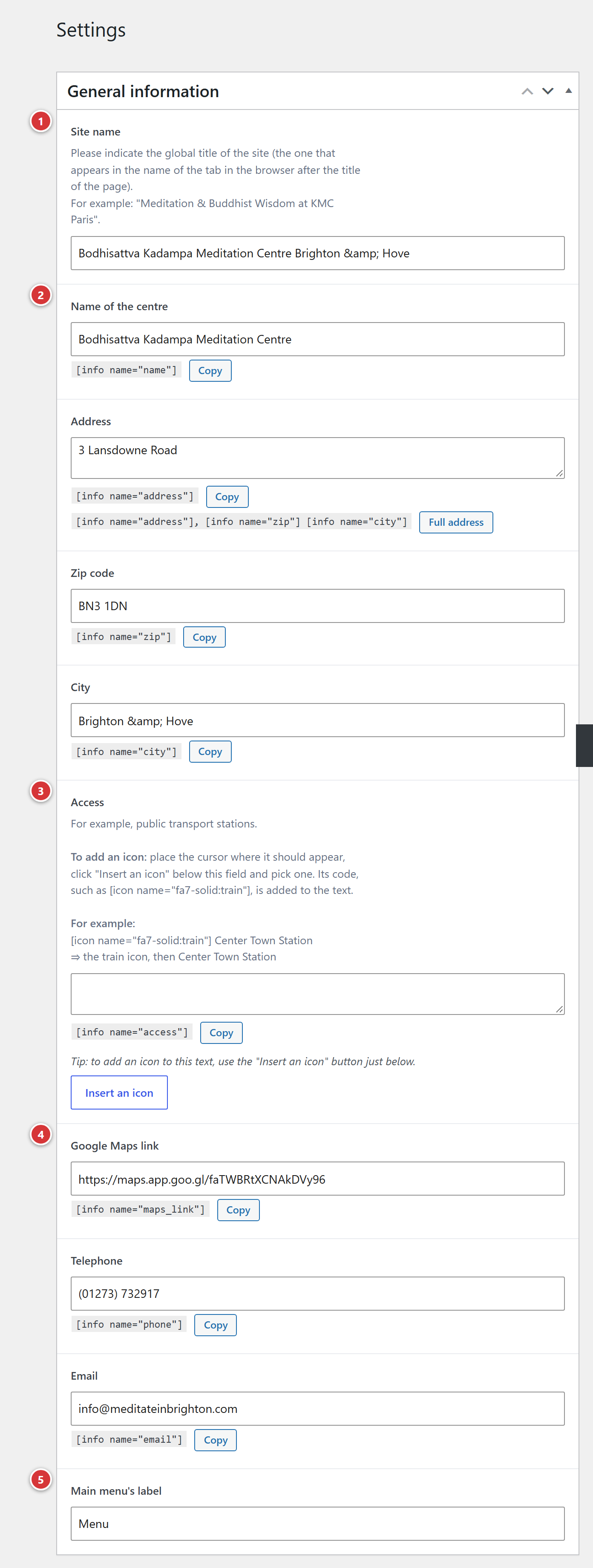
1 Site name. 2 Name of the centre, Address, Zip code, City. 3 Access. 4 Google Maps link, Telephone, Email. 5 Main menu's label. 6 Update: nothing is taken into account before this click.
Understand it in one minute
- The screen is called General information and looks like an ordinary page of the administration: fields to fill in, then an Update button.
- An empty field shows nothing on the site: this is not an error.
- This information does not appear on its own: the pages of the site call it where needed with
a small code, the
[info]shortcode. This call is already in place in the pages of the site; see Shortcodes in Avada pages to place it in a new page.
The fields
Site name
The overall title of the site: the one that appears in the browser tab, after the title of the page. For example: "Meditation & Buddhist Wisdom at KMC London".
Name of the centre
The name of the centre, as it should be written on the pages. Call: [info name="name"].
Address, Zip code, City
The postal address of the centre, in three fields. Calls: [info name="address"],
[info name="zip"] and [info name="city"].
Access
How to get to the centre: public transport stations, for example. Call: [info name="access"].
To illustrate a line, you can put an icon in front of it with the code [icon name="…"],
written in the field:
| You write | The site shows |
|---|---|
[icon name="train"] Central Station |
a train icon, then "Central Station" |
[icon name="bus"] Town Hall stop |
a bus icon, then "Town Hall stop" |
[icon name="info-circle"] Ring the intercom |
an information icon, then the text |
Google Maps link
The web address (URL) of the centre's listing on Google Maps. Call: [info name="maps_link"].
Telephone
The number, written as you want it to appear (for example "020 1234 5678"). On a mobile phone,
tapping the number starts the call: the site takes care of this link. Call: [info name="phone"].
Email
The centre's email address. Call: [info name="email"].
Main menu's label
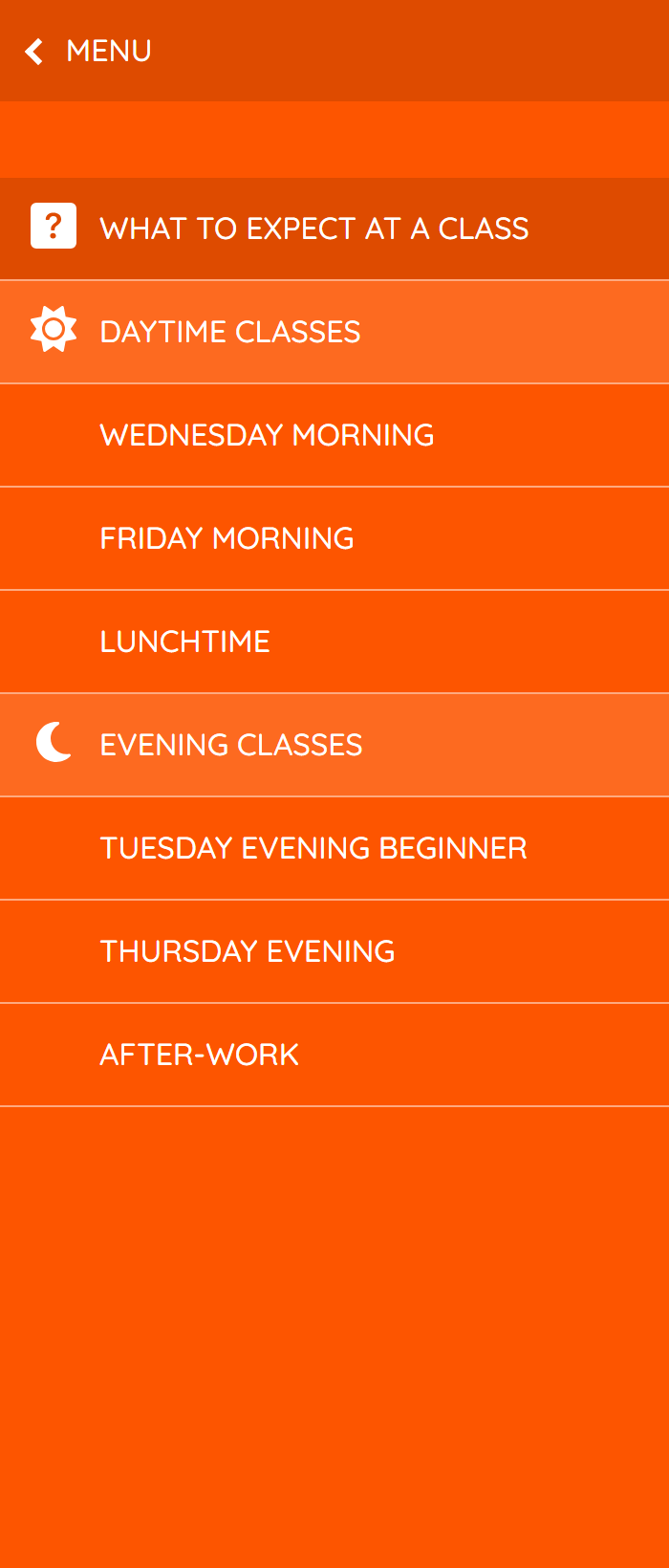
The text of the back button in the submenus of the site's sliding menu: when you open a submenu, this button takes you back to the main menu. For example "Menu". See Site menu.
Save
Click Update. The new information is visible on the site at the next visit. If a page still shows the old information, reload it with Ctrl + F5 (on a Mac: Cmd + Shift + R).
What not to do
- Do not move this screen to the Trash and do not change its web address: the site would no longer find its information. WordPress refuses both actions anyway.
- Do not type the telephone number or the address directly into a page: call them with
[info], so that a single change here updates them everywhere.
Frequently asked questions
I changed the address, but a page shows the old one.
Check that you clicked Update, then reload the page with Ctrl + F5. If
the old address remains, it is probably written directly in that page: edit it in the page, or
replace it with [info name="address"].
The "General" menu does not appear in my administration. The Layout module is not active on your site: contact the webmaster.
The screen shows "This screen opens a content that does not exist on this site". The centre's settings have not been created on this site: contact the webmaster.
Can I add a field (a second telephone number, a social network)? No: the fields are fixed. For another text, write it directly in the page.