Layout
Where: Layout menu of the administration. Who: administrators and editors.
For people comfortable with shortcodes
Changing a template affects the whole site. These settings are meant for those who know what they are doing and master the shortcodes that drive the site's presentation. If that is not your case, do not touch anything and get help.
Some parts of the site appear identically on many pages: the header, the footer, the registration box of an event… They are not copied into each page: they are written only once here, as templates, and the pages reuse them.
The benefit: changing a template changes it everywhere at once. If the address in the footer changes, you correct it in a single template, and every page of the site is up to date.
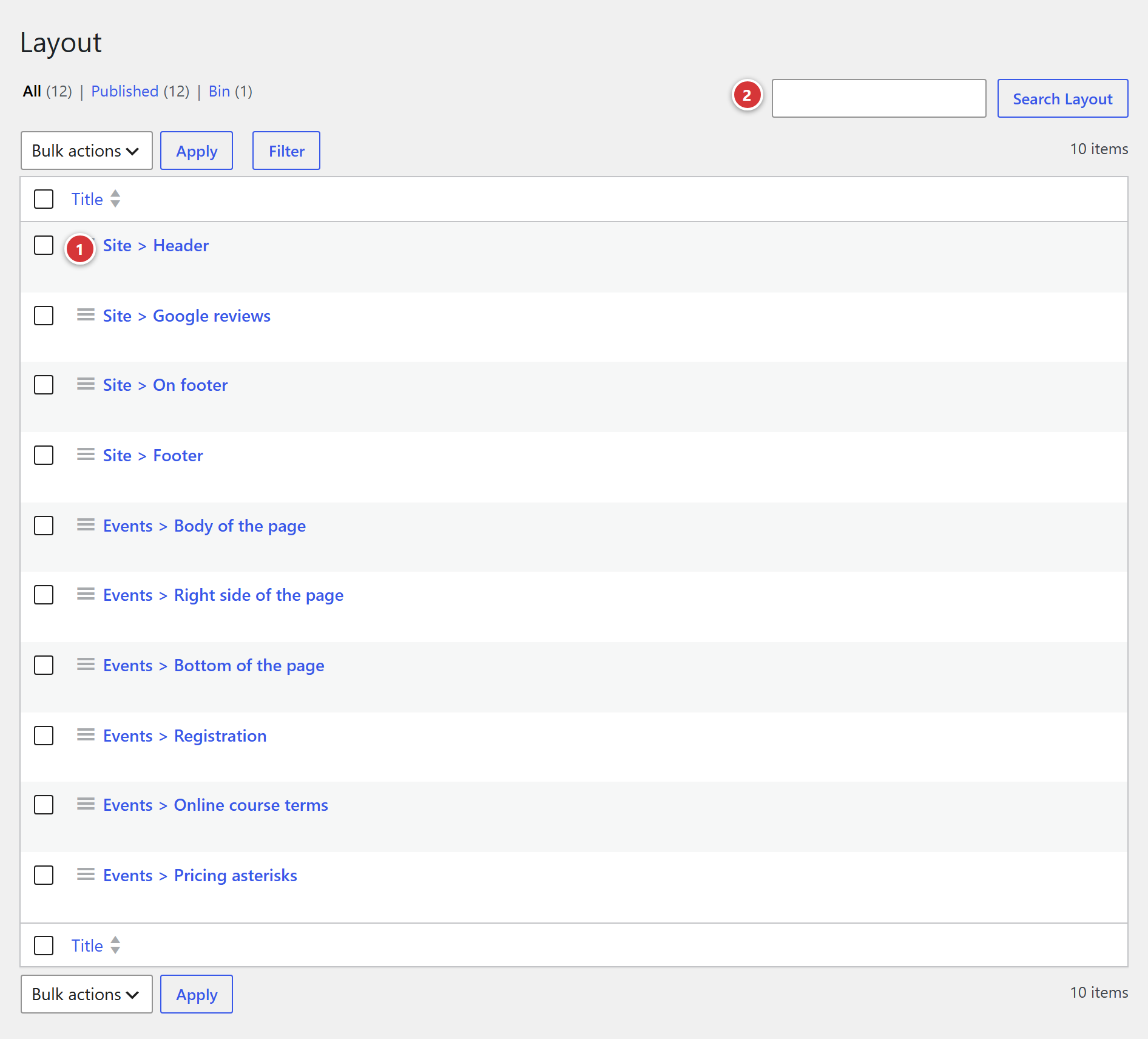
1 The title of a template: click it to edit the template. 2 The search field, useful if the list is long.
Understand in one minute
- A template is a piece of a page: a block of text and images laid out with the site's page builder, like an ordinary page.
- The templates are provided by the plugin: the list is fixed, you can neither create nor delete them. You edit their content.
- The pages of the site call a template at the right place. This call is already in place: you have nothing to set up.
- A template that is still empty shows nothing on the site: this is not an error.
Why there is no \"Add\" button
Each template matches a precise place in the site's layout, planned in advance. Creating one more would have no effect: no page would call it.
The list of templates
| Template | Where it appears on the site |
|---|---|
| Site > Header | At the top of every page. |
| Site > On footer | Just above the footer. |
| Site > Footer | At the bottom of every page. |
| Site > Google reviews | Where the site shows visitors' reviews. |
| Events > Body of the page | Main part of each event page. |
| Events > Right side of the page | Right-hand column of an event page. |
| Events > Bottom of the page | Bottom of an event page. |
| Events > Registration | Registration box of an event page. |
| Events > Online course terms | Terms shown on events that take place online (those whose venue is ticked "online"). |
| Events > Pricing asterisks | Notes at the bottom of the events' pricing tables. |
Depending on the site, some templates may be missing from the list: the templates listed are those that exist on your site.
Edit a template
- In the Layout list, click the title of the template.
- The edit screen opens on the site's page builder: edit the content as you would an ordinary page (text, images, columns…).
- Click Update (blue button, at the bottom right of the screen).
The title of the template cannot be changed: it is what allows the site to find the template.
Let us take an example: the Events > Body of the page template, which makes up the main part of each event page. It is made of a series of shortcodes, each showing a block of the page (the introduction, the dates, registration, the themes, the description, the timetable, the pricing, the venue and the map…). The event pages reuse this template as it is.
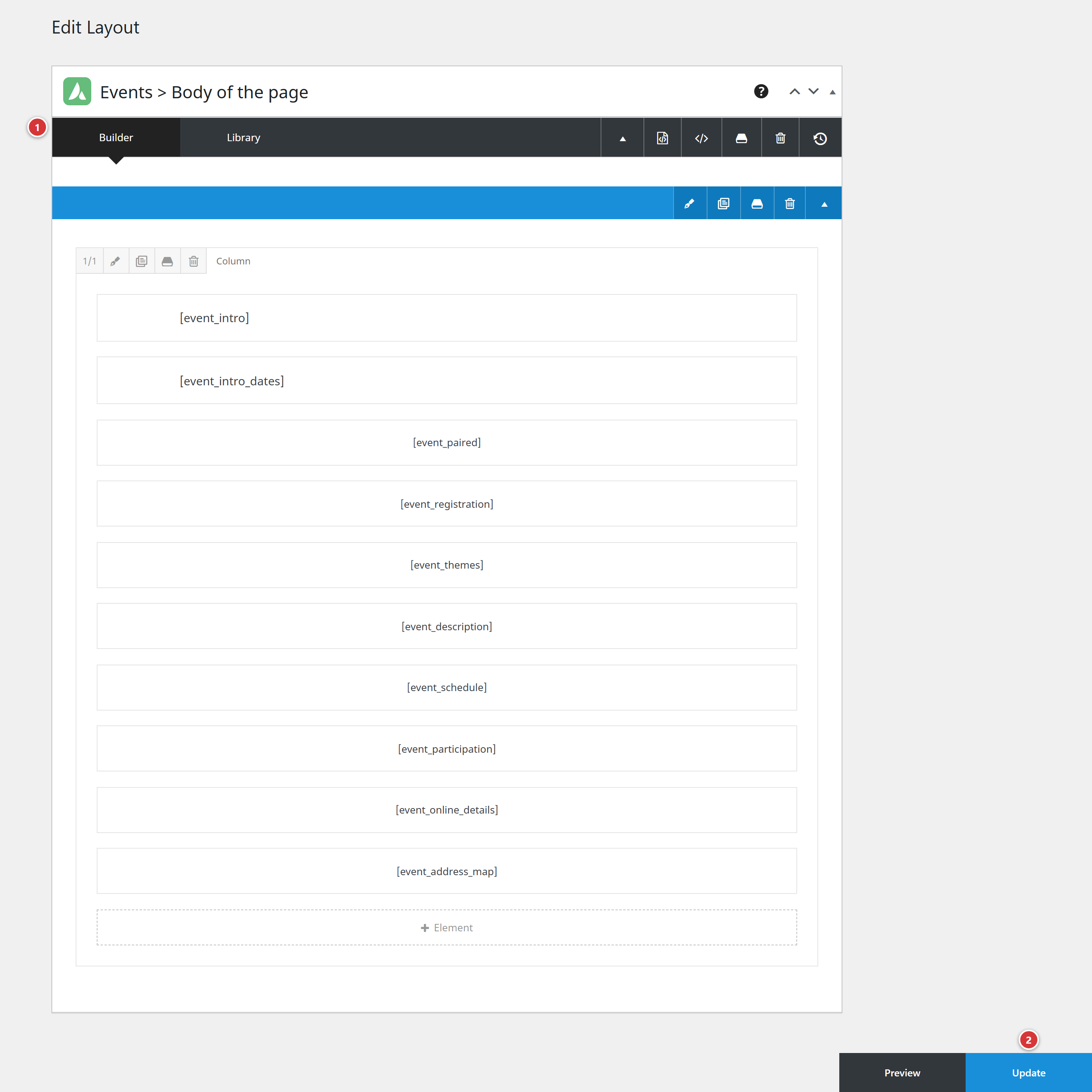
1 The site's page builder. 2 Update: saves the template; all the pages that use it are up to date.
A template appears on many pages
Before saving, read it through: a mistake in the footer appears on the whole site. To test a change, look at a page of the site after saving.
The pages do not change straight away?
The site keeps a copy of each page in memory to be faster. If you do not see the change, reload the page with Ctrl + F5 (on a Mac: Cmd + Shift + R). If it still shows the old version, wait: it will be renewed automatically.
What to avoid
- Do not rename a template and do not change its address: the site would no longer find it and its place would stay empty.
- Do not move a template to the trash: the place it fills would be empty on every page.
- For a text that only applies to a single page, edit that page, not a template.
Frequently asked questions
I edited a template, but the site page has not changed. Check that you clicked Update, then reload the site page with Ctrl + F5.
The template I am looking for is not in the list. It does not exist on your site. Contact the webmaster.
Can I add a new template? No: only the templates provided by the plugin are used by the site.
I only see the titles in the list after a moment. That is normal: the titles are shown once translated into your language.