Weekly timetable
Where: Settings > Weekly timetable menu. Who: editors and administrators.
Read this first
Two ideas are essential to understand the weekly timetable:
- the week of reference: the timetable copies an ordinary week of the calendar, and an incomplete week gives an incomplete timetable;
- the three time bands: morning, midday and evening, to be set as tightly as possible to avoid large gaps in the table.
We strongly encourage you to read first the two boxes "Understanding the week of reference" and "Understanding the three time bands" on the page Update the weekly timetable.
The weekly timetable is a table that shows a typical week of the centre's classes: Monday, Tuesday… with the times of the activities. Visitors look at it to know when to come, without having to leaf through the calendar week after week.
This screen sets what the table shows: its title, the week used as a model, the days shown and the time bands. The classes themselves are not entered here: they come from the events of the calendar.
The Settings > Weekly timetable menu only exists if the Weekly timetable module is active on your site (see Understand the site).
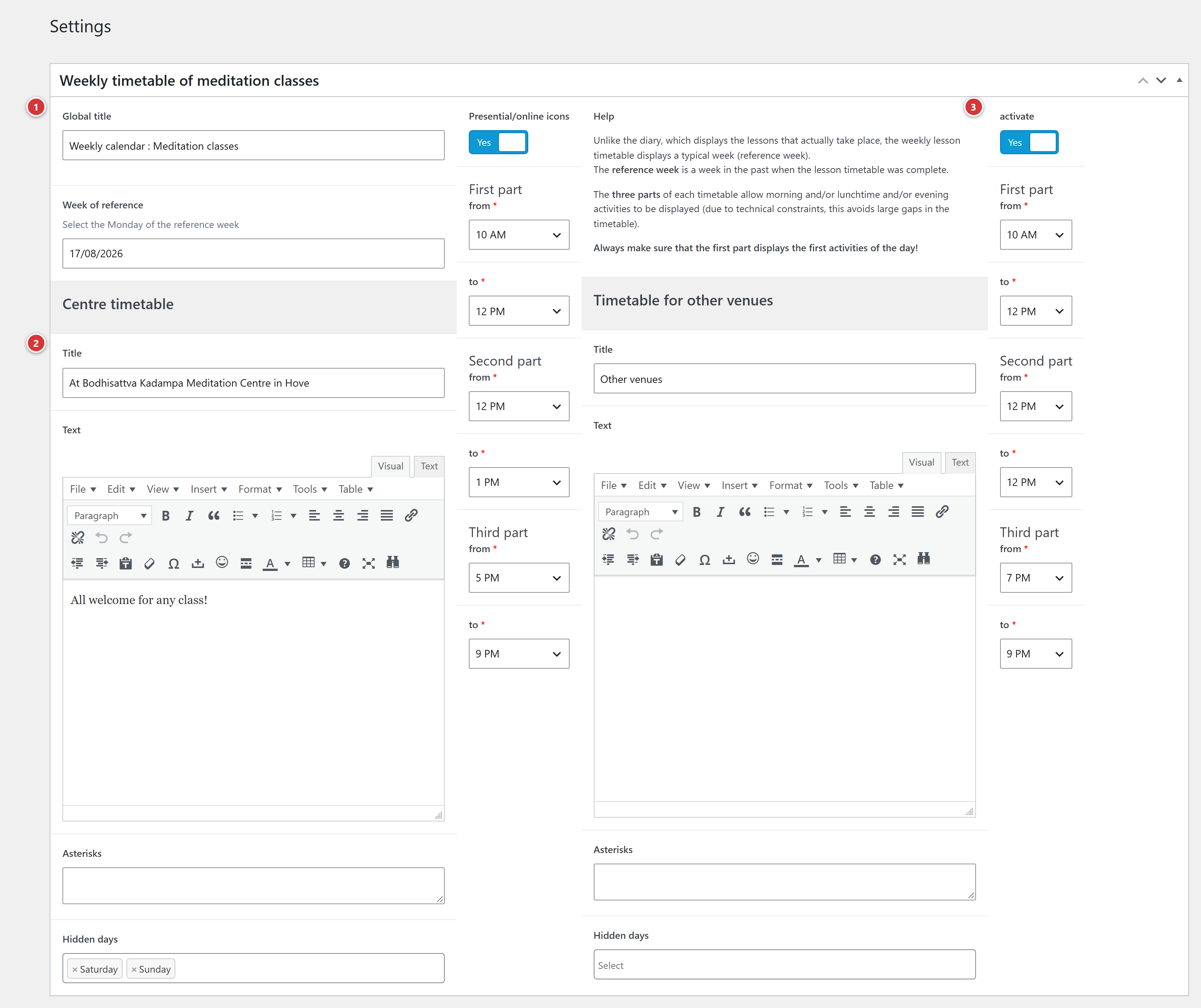
1 Global title, Week of reference and Presential/online icons. 2 Centre timetable: title, text, asterisks, hidden days, three time bands. 3 Timetable for other venues: a second table, optional. 4 Update: nothing is taken into account before this click.
Understand it in one minute
- The calendar shows the classes that actually take place, week by week. The weekly timetable shows a typical week: it copies a normal week of the calendar, the week of reference, in which all the weekly activities are at their usual time.
- So all you need to do is choose the right week: the table fills itself from that week's sessions.
- The table is split into three parts, for the morning, midday and evening. This avoids large empty spaces in the table, between the last session of the morning and the first of the evening.
- A second table, Timetable for other venues, can be added for another venue of the centre.
- The table is shown on the page where the timetable has been placed (usually the centre's timetable page); this placement is already done, you have nothing to add.
Global title
The title of the timetable, shown above the table.
Week of reference
The week of the calendar used as a model. Choose the Monday of that week in the date picker.
Choosing the right week
The timetable only shows the weekly activities (classes, regular practices), not talks or retreats. So take a normal week: all the weekly activities are in it, no session is cancelled or moved, and the times are the ones you want to show. An incomplete week gives an incomplete table.
To change the time of a class in the timetable, edit the event in the calendar, then choose a week of reference in which the new time applies. If the times change during the year, only the week of reference changes. Details in Update the weekly timetable.
Centre timetable
The main table.
Title and Text
Title: the name of the table (for example the name of the centre or of the venue). Text: a free text shown with it, formatted like an ordinary text (bold, links…).
Asterisks
The notes at the foot of the table: one line per note, for example "* Except during school holidays". They are shown under the table.
Hidden days
The days not to show in the table. For example, if the centre is closed on Mondays, choose Monday: the column disappears. You can choose several.
The three time bands
Each table has three parts, each set by a start time (from) and an end time (to), between 5 am and midnight.
The timetable is split into three bands to avoid large empty spaces (for example in the afternoon, when the centre is closed). Set each band as tightly as possible, from the first to the last activity of that part of the day. If you only use two bands, put the same time at the start and the end of the last one (for example from 9 pm to 9 pm). Details and example in Update the weekly timetable.
| Part | To show |
|---|---|
| 1st | the morning activities, or the first ones of the day |
| 2nd | the midday ones |
| 3rd | the evening ones |
The first part must show the first activities of the day
The three bands are read in order from top to bottom. If the first one starts after the second, the table will be in the wrong order. Always set them from morning to evening, without the bands overlapping.
Presential/online icons
Switch: when it is on, a small symbol shows whether the class takes place on site or online. It is on by default. This setting also applies to the site's calendar.
Timetable for other venues
A second table, with the same presentation, for another venue (an annex room, a venue in town…). It is set like the main table: Title, Text, Asterisks, Hidden days and the three time bands.
The activate switch controls whether it is shown: when it is off, the second table does not appear, but its settings are kept.
Save
Click Update. The change is visible on the site page at the next visit. If the page keeps the old version, reload it with Ctrl + F5 (on a Mac: Cmd + Shift + R).
Frequently asked questions
The table is empty or incomplete. Check the Week of reference: it must be a normal week, in which the classes take place at their usual time, and the date chosen must be the Monday of that week. Also check that the time bands cover the times of the classes.
A class is missing from the table. The table uses the sessions of the week of reference: the class must be in it, published, in the calendar. See Events.
A class has changed time. Edit the event in the calendar, then choose a week of reference that contains the new time.
A column has no business being in the table. Add that day to Hidden days.
The "Weekly timetable" menu does not appear. The module is not active on your site: contact the webmaster.