Pricing and Timetables
Where: Pricing and Timetables menus. Who: editors and administrators.
The page of an event usually shows two tables: the pricing (prices, donations, payment arrangements…) and the timetable (the running order: welcome, start, breaks, end). These two tables are not entered in each event: you write them once, in these two menus, and the events pick them up.
The benefit: a price written once, up to date everywhere
Many classes share the same price. A one-hour class, whether it takes place at lunchtime or in the evening, often costs the same. So you create a single table, for example "One-hour class", and link it to the activity or activities concerned: all the events of these activities show it automatically. To change a price, you correct this one table.
An event is an exception? You can give it another table, or show none: see below.
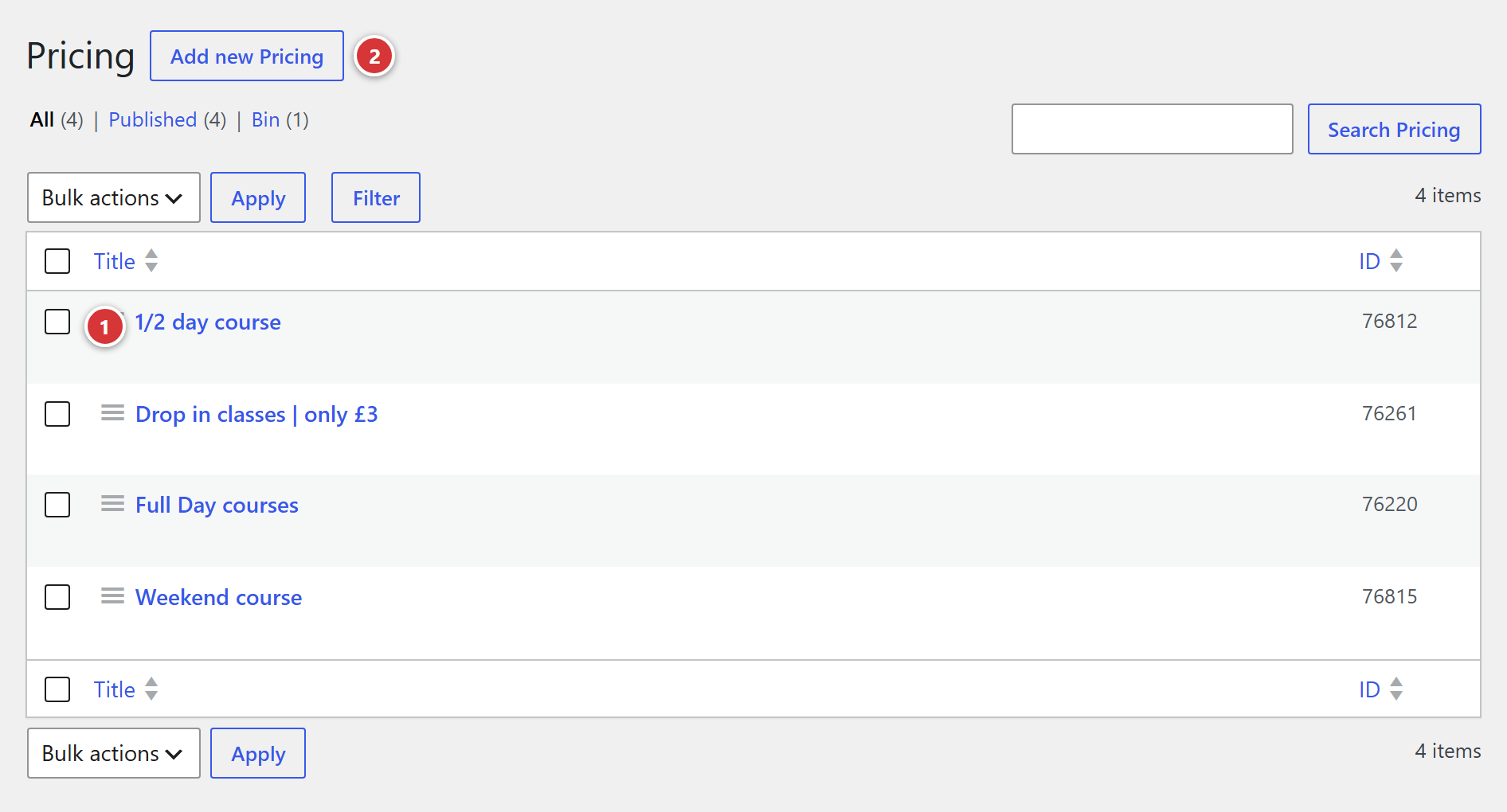
1 Title of a pricing table. 2 Add new: create a new table.
Understand it in one minute
flowchart LR
    P["Pricing menu<br>one price table<br>per activity and modality"] --> E["Page of an event"]
H["Timetables menu<br>one timetable<br>per activity"] --> E- A pricing or timetable table is a piece of page: a title to recognise it and a content, usually a table.
- Each table is linked to one or more activities (Class, Retreat…). An event automatically shows the table of its activity: there is nothing to choose in the event.
- For an exception (a class with a special price), you choose a particular table in the event, or you show nothing: see In an event.
Create a pricing table
Pricing menu.
- Click Add new.
- Give it a title: it is only used to recognise it (for example "Tuesday class, on site"). Visitors do not see it.
- Enter the prices in the content, usually as a table.
- Set the two fields Activity(ies) and Modalities (see below).
- Click Publish.
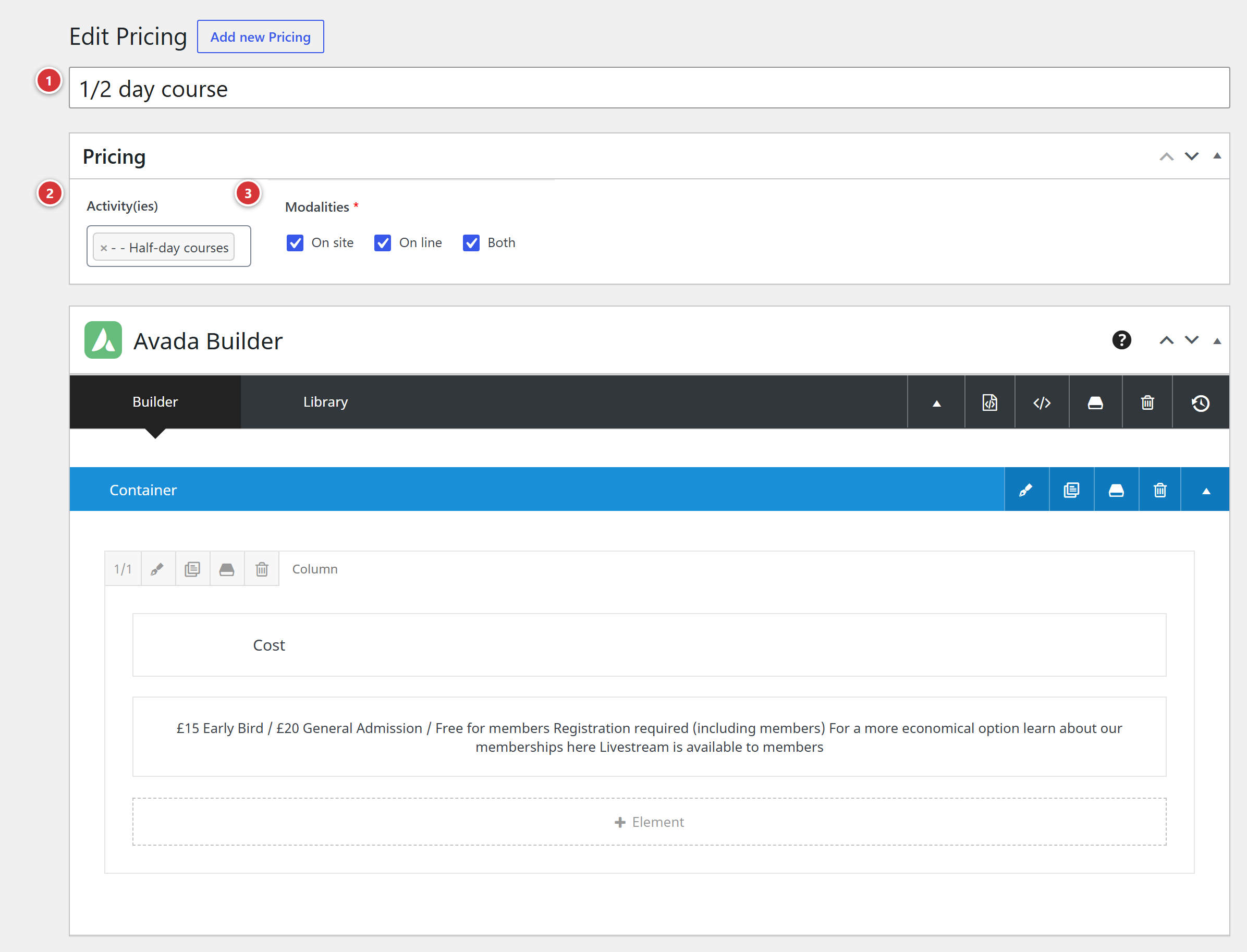
1 Title. 2 Activity(ies). 3 Modalities. 4 The content: the table of prices. 5 Publish.
Activity(ies)
The activities this table applies to. You can choose several: the same price table can be used for several activities.
Modalities
Required. Which way of taking part this table applies to:
| Modality | For events… |
|---|---|
| On site | that take place in a physical venue |
| On line | that take place only online |
| Both | that take place both on site and online |
Tick the one that fits. The prices of the same class may differ between attending in person and online: you then create two tables for the same activity, one set to On site, the other to On line.
The site works out an event's modality from its venues: a venue marked "online" is an online venue (see Activities and venues).
The asterisks
Under each pricing table, the site adds common notes (" Reduced price on proof…"). They are not entered here: they are edited in the Events > Pricing asterisks template of the Layout menu. They are shown under all* the pricing tables.
Create a timetable
Timetables menu. Same steps: Add new, a title, the content (the running order), then the Activity(ies) field, and Publish. There is no Modalities field: a timetable applies whatever the mode, on site or online.
Activity(ies)
The activities this running order applies to, one or more.
In an event: by default, do not display, choose
On the edit screen of an event, Other options section (see Events), two settings decide which tables the page shows:
| Setting | Choice | Effect |
|---|---|---|
| Pricing | By default | The table that matches the event's activity and its modality (on site, online, both). |
| Do not display | No pricing table on the page. | |
| Choose one... | Brings up the Pricing choice list: you pick the table yourself. | |
| Timetable | By default | The timetable that matches the event's activity. |
| Do not display | No timetable. | |
| Choose one... | Brings up the Timetable choice list. |
These two settings are already on By default: you only touch them for an exception.
If nothing shows with "By default"
With By default, the page only shows a table if a published table matches both the activity and the modality of the event. Otherwise, nothing appears, without any error message. Check that there is a published table for this activity and this modality (on site, online or both), or use Choose one....
Edit or delete
- Edit: click the title of the table in the list, then Update. The change shows on all the event pages that display it.
- Delete: hover over the title and click Trash. The events that showed this table no longer show it (or show another one, if another one matches By default).
The pages do not change straight away?
If you do not see the change, reload the event page with Ctrl + F5 (on a Mac: Cmd + Shift + R).
Frequently asked questions
The pricing of my event does not appear. Check that a published pricing table exists for the activity and the modality of this event. An event that has a physical venue and an online venue looks for a table marked Both. Otherwise, choose the table with Choose one....
Two tables suit the same activity. Only one of the two is shown. To be sure of the result, keep only one table per activity and per modality, or choose the right one in the event.
An event must have a different price from the others. Create a dedicated table, then, in the event, Pricing > Choose one... and select it in Pricing choice.
An event is free: no price to show. Set Pricing to Do not display.
The notes at the bottom of the table are wrong. They come from the Events > Pricing asterisks template: see Layout.