Private pages
Where: Private pages menu. Who: editors and administrators.
A private page is a page that can only be found if you know its secret link. It is used to share content meant for a particular audience, without creating accounts: for example the month's programme for a centre's members. You send the link by email; whoever has the link has access to the page.
You can limit access to a period: the link only works from a date, and/or until a date. This is what lets you publish the October programme without November's being readable already.
The Private pages menu only exists if the Private pages module is active on your site: this module is not activated everywhere (see Understand the site).
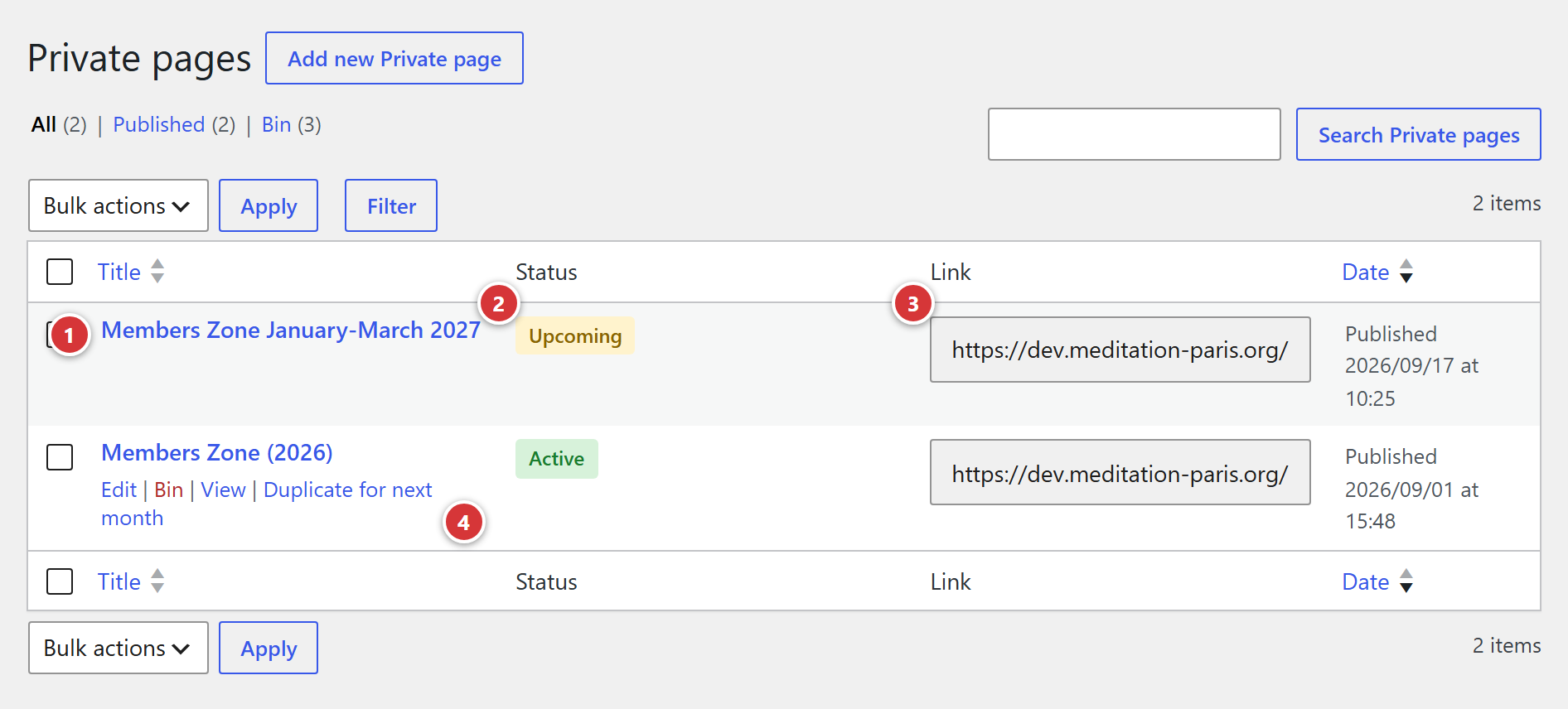
1 Title of the page. 2 Status: Upcoming, Active or Expired. 3 Link of the page, to copy. 4 Duplicate for next month, when hovering over the title.
Understand it in one minute
- A private page is built like an ordinary page (title, text, images, Avada builder).
- Its web address cannot be guessed: it contains a long string of random characters, the key. Without the link, it is impossible to find.
- The page appears nowhere: not in the site search, not in the site map, and not in search engines, which are told not to index it.
- A private page must be published for its link to work. A draft cannot be accessed by visitors.
- Editors and administrators, when logged in, can always see the page, whatever the period: this is handy for proofreading it.
It is not a safe
A secret link is not a password: anyone you pass the link to can pass it on in turn. For truly confidential content, do not use a private page.
The list of private pages
| Column | Content |
|---|---|
| Title | The title of the page. Click it to edit the page. |
| Status | Upcoming: the access period has not started. Active: the link works. Expired: the period is over. |
| Link | The address of the page, to copy: click in the box to select it. |
When you hover over a title, the Duplicate for next month link creates a copy of the page for the following month (see below).
Create or edit a private page
- Click Add new at the top of the list (or the title of a page to edit).
- Enter the title and the content of the page, as for an ordinary page.
- In the Access link box, set the access period (see below).
- Click Publish (or Update).
- Copy the Link to share and send it to your recipients.
The "Access link" box
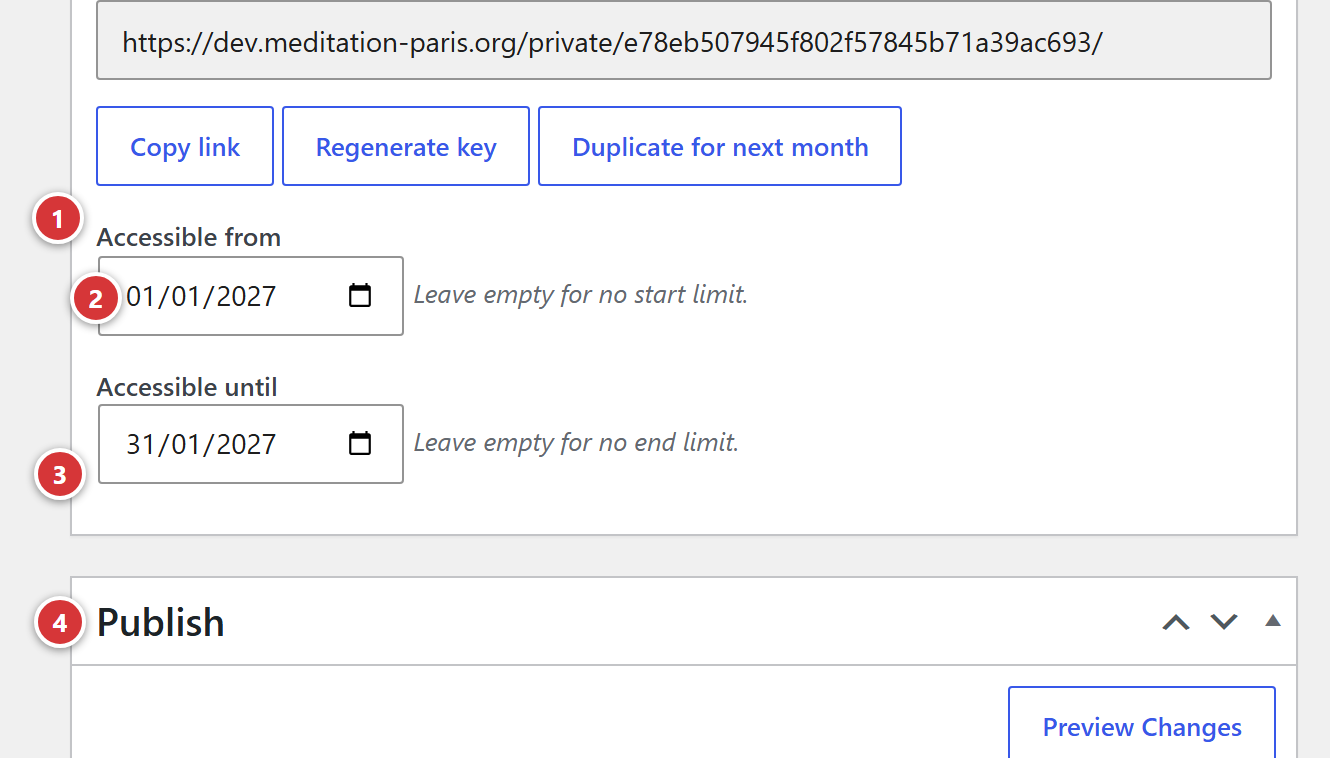
1 Link to share. 2 Copy link, Regenerate key and Duplicate for next month. 3 Accessible from. 4 Accessible until.
Link to share
The full address of the page, with its secret key. Click in the box to select it, or use Copy link: the button confirms with "Copied!".
Regenerate key
Replaces the key with a new one: the old link stops working and a new link is created. Useful if the link has been passed around too widely. The site asks for confirmation: "Regenerating the key invalidates the link already sent out. Continue?". You then need to send the new link to the recipients.
Accessible from and Accessible until
The access period. Choose a date in each field:
- Accessible from: the page can only be read from that day. Left empty: no start limit.
- Accessible until: the page can be read until the end of that day included. Left empty: no end limit.
Outside the period, the visitor sees a message instead of the page:
| Situation | Message shown |
|---|---|
| Before the start date | "This link isn't active yet. Please check back later, or contact the centre if you think this is an error." |
| After the end date | "This link has expired. Please contact the centre to get an up-to-date link." |
The title of this warning page is "Link unavailable".
Duplicate for next month
For a programme that changes every month, rather than redoing the page:
- In the list, hover over the title of the month's page and click Duplicate for next month (the same button exists in the Access link box).
- A copy opens for editing. It has the same title and the same content, a new key (so a new link) and an access period shifted by one month: 1 October becomes 1 November, 31 October becomes 30 November.
- The copy is a draft: edit the content, then click Publish.
The last day of the month stays the last day of the month
A "whole month" period (from the 1st to the 31st) stays "whole month": 31 January gives 28 February, 30 September gives 31 October.
Change the beginning of the addresses
All private pages have an address of the form https://your-site/private-page/secret-key/. The
word before the key is changed in Settings > Advanced, reserved for the webmaster (see
Advanced). Changing it changes the address of
all existing private pages: links already sent out stop working.
Frequently asked questions
The recipient sees "This link has expired" although the period is not over. Check the Accessible until date: the page stays readable until the end of that day. Also check that it was not entered with a past year.
The recipient sees a "not found" page. Check that the page is published and that the link is complete, without any character cut off by the email software. If in doubt, copy it again with Copy link.
I want to remove a recipient's access. Click Regenerate key, then send the new link to the others. The old one is dead.
Can I see the page as a visitor does? When logged in, you always see it. To test the message outside the period, open the link in a private browsing window.
Does the page appear in Google? No: it is neither in the site map nor in the search, and it carries the instruction not to be indexed.