Advanced
Where: Settings > Advanced menu (Advanced settings screen). Who: administrators only, not editors.
This screen brings together the technical settings of the plugin, the ones you almost never change once the site is up and running: beginning of web addresses, menu width, headings of the teachers page… They are grouped in sections; each active module adds its own. A section whose module is not active on the site does not appear.
Only change these if you know what you are doing
Some settings (the beginnings of addresses) change the address of all the pages concerned and break the links already published: emails sent, social networks, bookmarks, search engines. If in doubt, change nothing.
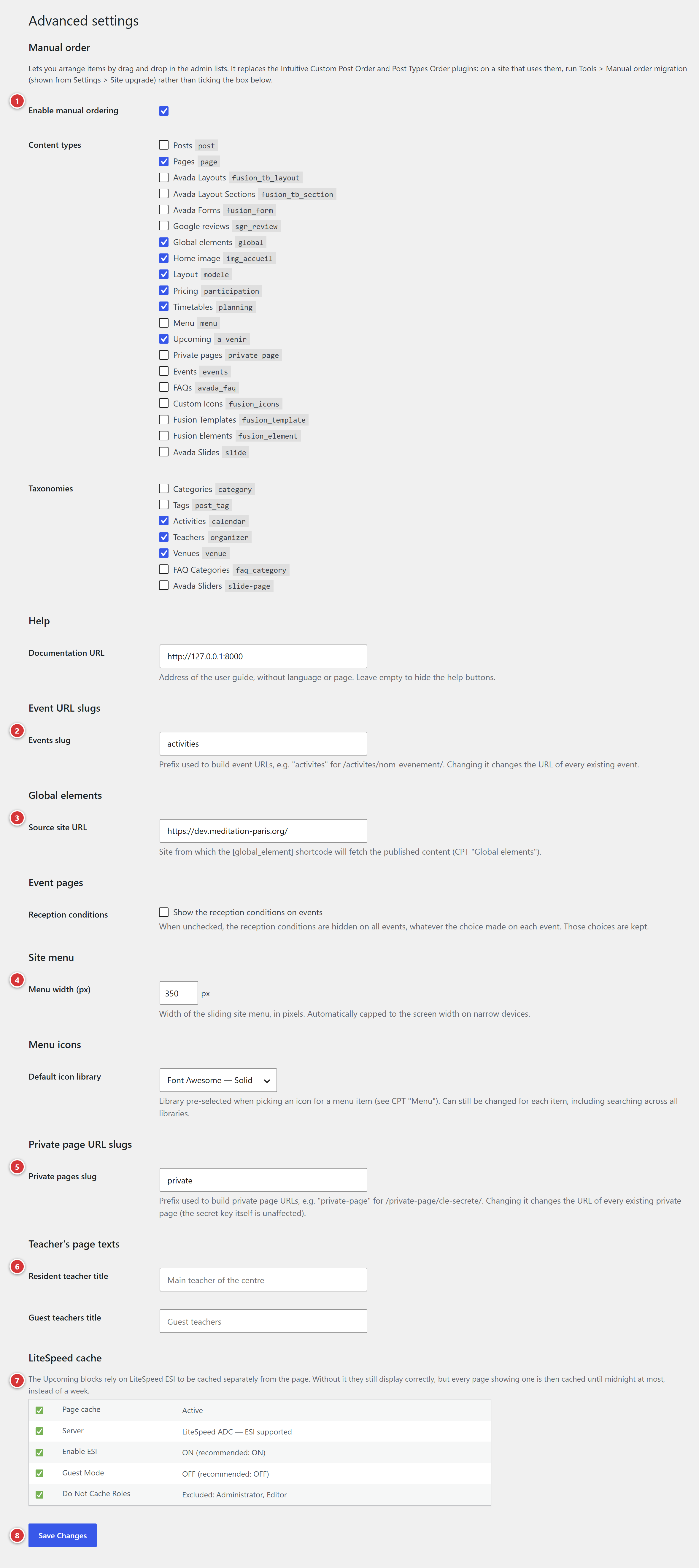
1 Manual order. 2 Event URL slugs. 3 Global elements. 4 Site menu and Menu icons. 5 Private page URL slugs. 6 Teacher's page texts. 7 LiteSpeed cache. 8 Save Changes.
After changing a setting, click Save Changes, at the bottom of the screen. The message "Settings saved." confirms the operation.
Manual order
Lets you sort by hand, by drag and drop, the items of the administration lists (activities, venues, teachers, menu…). It replaces the "Intuitive Custom Post Order" and "Post Types Order" plugins.
| Setting | Role |
|---|---|
| Enable manual ordering | Checkbox: turns on sorting by drag and drop. |
| Content types | The content types whose items can be sorted by hand. |
| Taxonomies | The lists (activities, venues, teachers…) whose items can be sorted. |
Site that still uses the old plugins
On a site that uses "Intuitive Custom Post Order" or "Post Types Order", do not tick the box: run the Tools > Manual order migration tool instead, which takes over the old order.
The effect for editors is described in Activities and venues.
Event URL slugs
Section present if the Calendar module is active.
Events slug: the word before the name of an event in its web address. By default
activites: an event is then at the address https://your-site/activites/name-of-the-event/.
Changing this setting changes the address of all events
All the event addresses already published (emails, social networks, search engines) stop
working. An empty field goes back to activites. Accents and spaces are converted (My classes
becomes my-classes).
Global elements
Section present if the Global elements module is active.
Source site URL: the address of the site from which this site retrieves the content published
with [global_element]. It is entered in full, for example https://another-centre.org. A site
that only publishes elements does not need this setting. See
Global elements.
Site menu and Menu icons
Sections present if the Site menu module is active.
| Setting | Role |
|---|---|
| Menu width (px) | The width of the sliding menu, in pixels (400 by default). On a small screen, it is automatically limited to the width of the screen. |
| Default icon library | The icon library offered first when choosing the icon of a menu entry: Font Awesome (Solid, Regular, Brands), Tabler Icons, Lucide, Phosphor, Material Symbols or Bootstrap Icons. It can still be changed for each entry. |
See Site menu.
Private page URL slugs
Section present if the Private pages module is active.
Private pages slug: the word before the secret key in the address of a private page. By
default private-page: https://your-site/private-page/secret-key/.
Changing this setting invalidates the links already sent out
The address of all the private pages changes. The secret key itself is not changed. Recipients who received the old link can no longer open the page; you need to send them the new links.
See Private pages.
Teacher's page texts
Section present if the Teachers module is active. It replaces the two headings of the teachers page: Resident teacher title (by default "Main teacher of the centre") and Guest teachers title (by default "Guest teachers"). An empty field keeps the original heading. See Teachers.
LiteSpeed cache
Section present if the Upcoming events module is active. It is a read-only status block: it shows whether the LiteSpeed Cache plugin is set up in the best way for the "Upcoming" blocks.
In particular, it shows the status of the page cache, the type of server (ESI is not available on an OpenLiteSpeed server), the Enable ESI and Guest Mode settings of LiteSpeed Cache, with the recommended value. When a setting needs correcting, a message also appears on the dashboard and the Settings screens; you can hide it (Hide this notice link), then show it again from this block (Show it again link).
The "Upcoming" blocks stay correct even without this setting: the site is only slower. For the logic and what to set in LiteSpeed Cache, see "Upcoming" blocks and the cache.
Frequently asked questions
I cannot see a section described here. The module that adds it is not active on your site. The Settings > Modules screen shows which ones are.
I do not have the "Advanced" menu. It is reserved for administrators. An editor does not see it, even if they can change other settings of the site.
I changed the beginning of an address and some links no longer work. Put back the old value and save: the old addresses work again straight away.