Home image
Where: Home image menu of the administration. Who: administrators and editors.
Read this first
Before composing a home image, it is important to understand what it is for: it speaks to people who are discovering the site for the first time, and must give them an immediate, positive first impression.
We strongly encourage you to first read the section The home image: creating a positive first impression of the "Site philosophy and design principles" page. You will then know which message, which visual and which tone to choose.
The home image is the large image at the top of the home page, with its text over it. Here you set the image, the text and its formatting; a live preview shows you the result before saving, and a View on the home page button lets you see it in real conditions before publishing it.
You can create several home images: on each visit, the site shows one at random. This is handy for rotating messages (one image per activity, per season…).
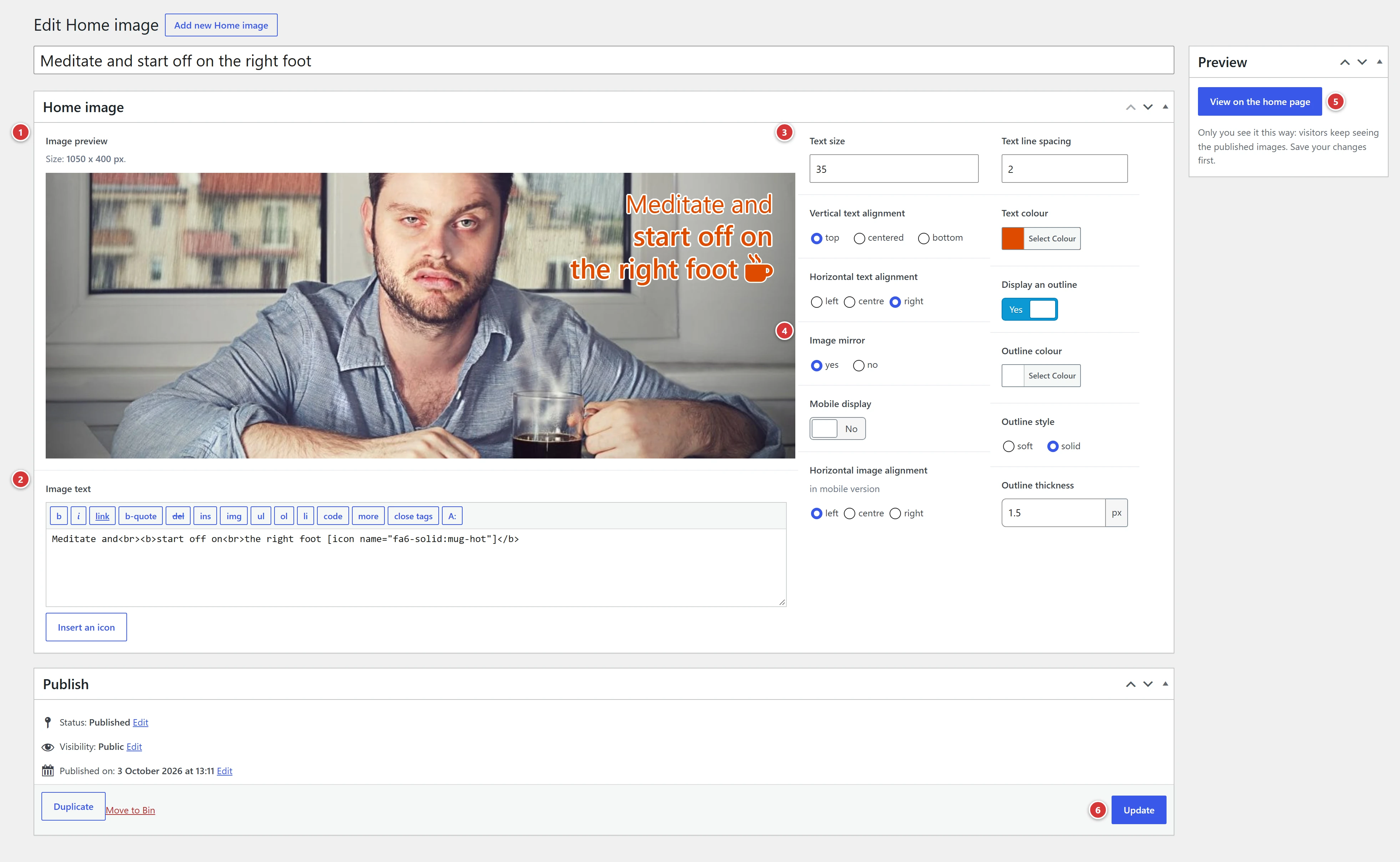
1 Image preview: the live rendering, as it will appear on the site. 2 Image text: the message written on the image. 3 Text settings: size, line spacing, colour, alignments, outline. 4 Image settings: mirror, alignment for small screens. 5 View on the home page: opens the site's home page with this image, so you can judge it in real conditions, even while it is still a draft. 6 Publish or Update: saves the home image.
Understand in one minute
- A home image = an image + a text + its formatting.
- Several can be published at the same time: the site shows one at random each time the page is displayed.
- To remove a home image from the site, move it to the trash or set it back to draft.
- An image in draft (or pending review) is never shown to visitors: only published images are drawn at random. To see it for real before publishing it, use the View on the home page button (see below).
The list
The Home image menu opens the list of home images. Clicking one opens it for editing; the Add new button (or Add new Home image) creates a new one. Below each line, the View on the home page link opens the site's home page with this image (see See the image on the home page).
The Title field of the edit screen is not used: home images are only told apart by their content.
Create or edit a home image
- Click Add new (new image) or an existing image.
- Set the image and the text (see below), using the preview to help you.
- Save with Save Draft, then click View on the home page to judge the result in real conditions.
- When you are happy with the image, click Publish (or Update).
The preview updates as you go; nothing is saved until you click Publish or Update.
Image preview
Click the preview area to choose the image from the media library, or upload a new one.
The right image size
Recommended size: 1050 x 400 px. An image with other dimensions may be cropped or look blurred: check the preview.
On small screens (phones), the image is reduced, but so is its text: the layout stays the same, only smaller. Below 1000 px wide, the height decreases in proportion (250 px minimum).
Image text
The text editor writes the message shown on the image. It works like the usual text editor: bold, italics, line breaks.
A line break in the editor is a line break on the image.
Insert an icon
To put an icon in the text, place the cursor where you want it, click Insert an icon (below
the Image text field), look for the icon and click it: its code, in the form
[icon name="…"], is inserted at the cursor and the preview updates immediately.
Text settings
| Setting | What it does |
|---|---|
| Text size | Size of the letters, in pixels. 35 by default. The text shrinks in proportion on small screens. |
| Text line spacing | Space between the lines. 0 by default (tight lines); each extra point spaces the lines out a little more. |
| Text colour | Colour of the letters. White (#FFFFFF) by default. |
| Vertical text alignment | top, centered or bottom of the image. |
| Horizontal text alignment | left, centre (default) or right. |
| Display an outline | Switch, on by default. Adds a thin border around the letters and icons, so that they stay readable on a light or busy image. |
| Outline colour | Colour of the border. Only appears if Display an outline is on. |
| Outline style | soft (default): a blurred outline, like a halo; solid: a sharp outline. Only appears if Display an outline is on. |
| Outline thickness | From 1 to 5 px (2 by default). Only appears if Display an outline is on. |
A readable text
White text with a dark outline stays readable on almost any image. For dark text, choose a light outline.
Image settings
| Setting | What it does |
|---|---|
| Image mirror | yes: the image is flipped from left to right. Useful for moving a person or the subject without changing the image. |
| Horizontal image alignment (in mobile version) | On a small screen, the image is narrower than the screen and its framing is cut off at the edges. Choose the part that is kept: left, centre or right. |
Mobile display (preview)
The Mobile display switch saves nothing: it changes the size of the preview to simulate a phone (320 px wide). Use it to check that the text fits and that the image is well framed on a small screen, before publishing.
See the image on the home page
An image in draft is not shown to visitors: so you cannot see it on the site without publishing it. The View on the home page button solves this problem: it opens the home page, in a new tab, with the image you are working on, as visitors would see it, with the site's real layout (the menu, the colours, the screen size). It is the best way to check that the text is readable before publishing.
It is found in two places:
- in the Preview box, at the top of the right-hand column of the edit screen (5 on the screenshot);
- below each image in the list, with the View on the home page link.
Save first
The site shows the image as it is saved, not as it is on the screen. For a new image, first save the draft (the button only appears afterwards); for an existing image, click Update or Save Draft before opening the preview, otherwise you will see the old version.
Only you see this preview
The preview is only visible to you, logged in with the right to edit the image. Visitors keep seeing the published images, drawn at random. Nothing is published by this button.
Where the image appears
The home image appears where the home page has placed the home image block: this is already set up on your site. No image is shown if no home image is published.
Frequently asked questions
My image does not appear on the home page. Check that it is published (and not a draft or pending review): only published images are shown to visitors. To see an image that is not yet published, use View on the home page. Then reload the page with Ctrl + F5 (on a Mac: Cmd + Shift + R).
The home page shows a different image on each visit. That is intentional: with several published home images, the site picks one at random. To keep only one, move the others to the trash.
The text is hard to read. Turn on Display an outline, or change the colour of the text or of the outline. Also check with Mobile display.
The text is cut off on phones. Reduce the size of the text, or shorten it. Check with Mobile display.
Can I put a link or a button on the image? No: the home image only contains image and text.