The site menu
The site menu is the sliding menu that opens on the public pages. It is managed from the Menu entry in the admin. This page explains how it is built, so that there are no surprises the first time you change it.
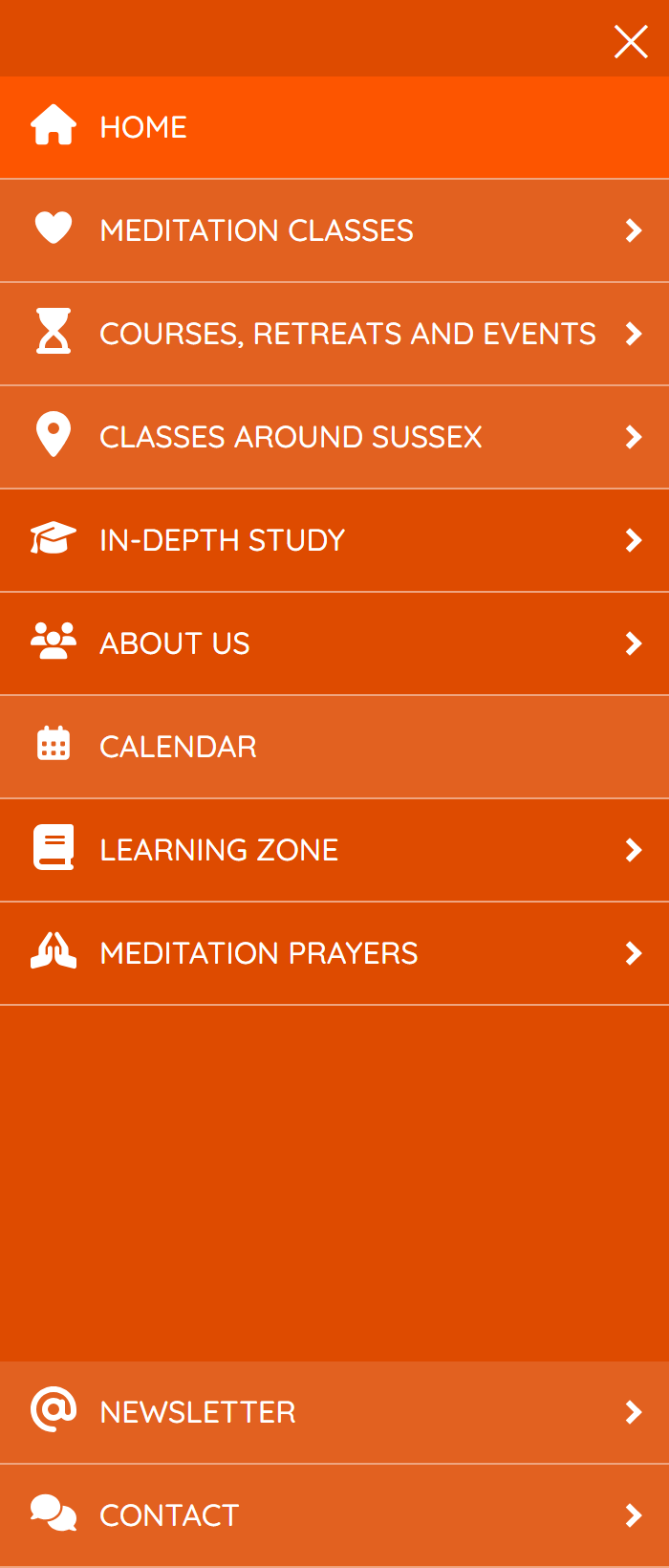
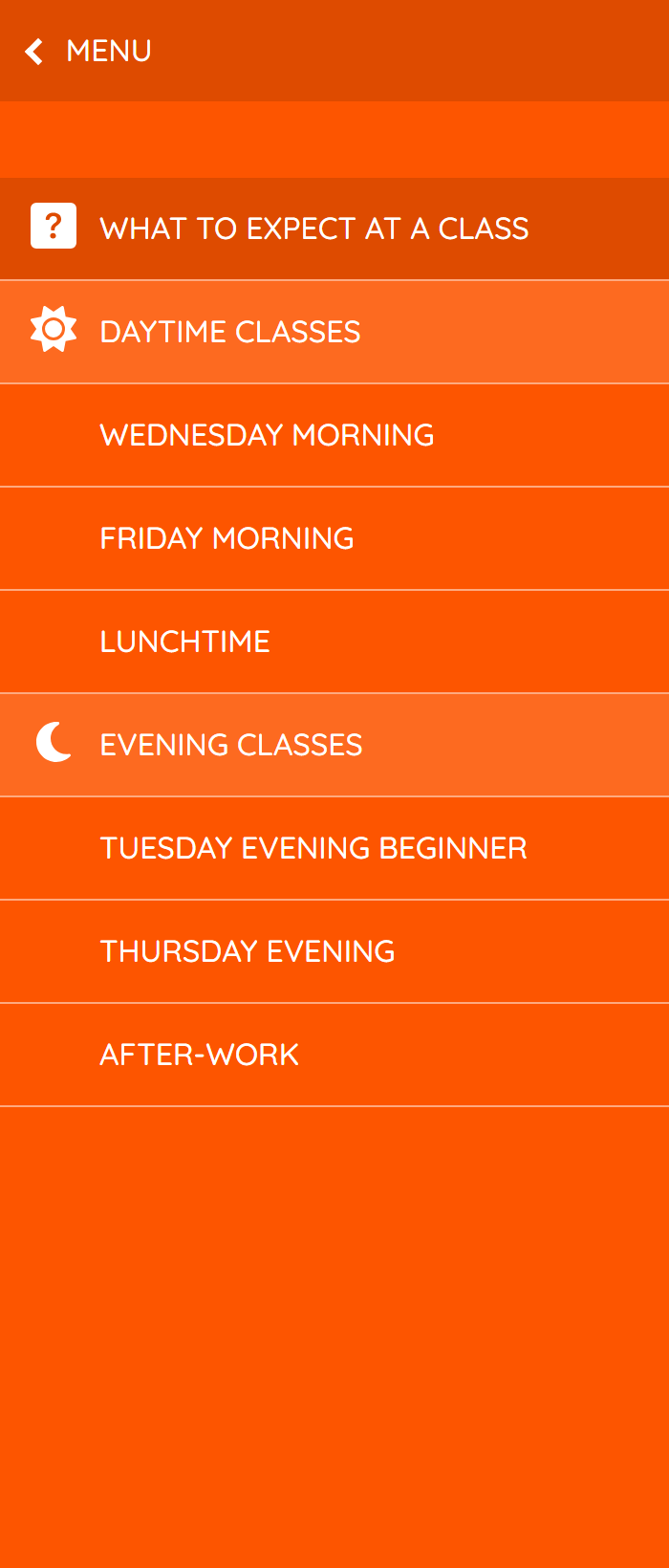
On the left, the menu; on the right, a sub-menu opened from one of its entries.
The idea behind this menu
- Always within reach. The same menu opens on every page of the site, on phone and computer alike, whatever the size of the screen.
- Two levels at most. The whole site must be reachable in two menu clicks: a main menu, and at most one sub-menu under each entry.
- Easy to read at a glance. Each entry can have an icon, and some can be highlighted with a slightly lighter background. These discreet markers give the list its structure: the eye finds its way around more quickly.
- A lighter main menu. More secondary entries (in the example above, Newsletter and Contact) can be lined up at the bottom of the screen, with the At the bottom setting. The main entries thus stay grouped together at the top.
Two separate things: the position and the content
Each entry in the menu is a menu element. It is set in two places:
| Where | What you set there |
|---|---|
| The Menu screen | The position of the elements: their order, and which elements sit under which other. |
| The element's record | Its content: its name, what it opens, its icon, its highlight… |
From the Menu screen, the Edit this element button (✎) opens the element's record in a new browser tab. The name shown on the Menu screen is always the one in the record: to rename an element, you edit its record.
What an element can do
An element's Type of menu decides what happens when a visitor clicks on it:
- Opens page: the visitor arrives on the chosen page, or at the address entered in Entered link.
- Opens sub-menu: a second level appears, with the elements placed under this one on the Menu screen.
- Displays content: instead of a link, the menu shows laid-out content (for example the centre's contact details or a map).
Other settings can be added: an icon, the element's highlight, or the At the bottom setting, which places it at the bottom of the menu. Each of these settings is described on the Site menu page.
What is immediate, and what is not
The Menu screen acts straight away, without waiting for you to save:
- Create a menu element, Add an element at the same level and Add a sub-element create the element immediately, under the temporary name "New element", and open its record in a new tab. As long as its record has not been published, it is marked draft and does not appear on the site.
- Remove deletes the element from the menu, after confirmation, and moves its record to the bin.
Only moving elements (changing the order, placing one element under another) requires you to click Save Menu.
No need to go back to the Menu screen after editing a record
As soon as an element's record is published or updated, the site menu takes it into account. When you come back to the Menu screen's tab, the names update by themselves.
The links between the menu and the records
The Menu screen and the records always stay in agreement:
- removing an element from the menu moves its record to the bin;
- moving a record to the bin removes its element from the menu; the elements placed under it move up one level;
- restoring a record from the bin puts it back in the menu.
Abandoned elements
An element that was created but never filled in (still called "New element") moves to the bin by itself after 24 hours. So clicking a create button by mistake has no consequences.
For the screens and a step-by-step guide: Site menu and Edit the site menu.