Global elements
Where: Global elements menu. Who: editors and administrators.
In a centre, there is rarely time to keep background pages up to date, such as the one that introduces the tradition. A change of International Spiritual Director, and the page is out of date.
Global elements solve this: the text is kept up to date only once, on a reference site for each language, and all the other sites follow by themselves. Your centre benefits from work done once for everyone.
Example: the introduction to the tradition
- Paris keeps the introduction up to date in French, Brighton in English.
- Each centre shows this text in its own page.
- The International Spiritual Director changes? Brighton corrects the text once. Within a quarter of an hour, the page of every centre that shows it is up to date, without anyone else having to do anything.
In practice, a global element is a piece of content written on a provider site (the reference site) and shown on client sites. A site can be one, the other, or both at once.
The Global elements menu only exists if the Global elements module is active on your site (see Understand the site).
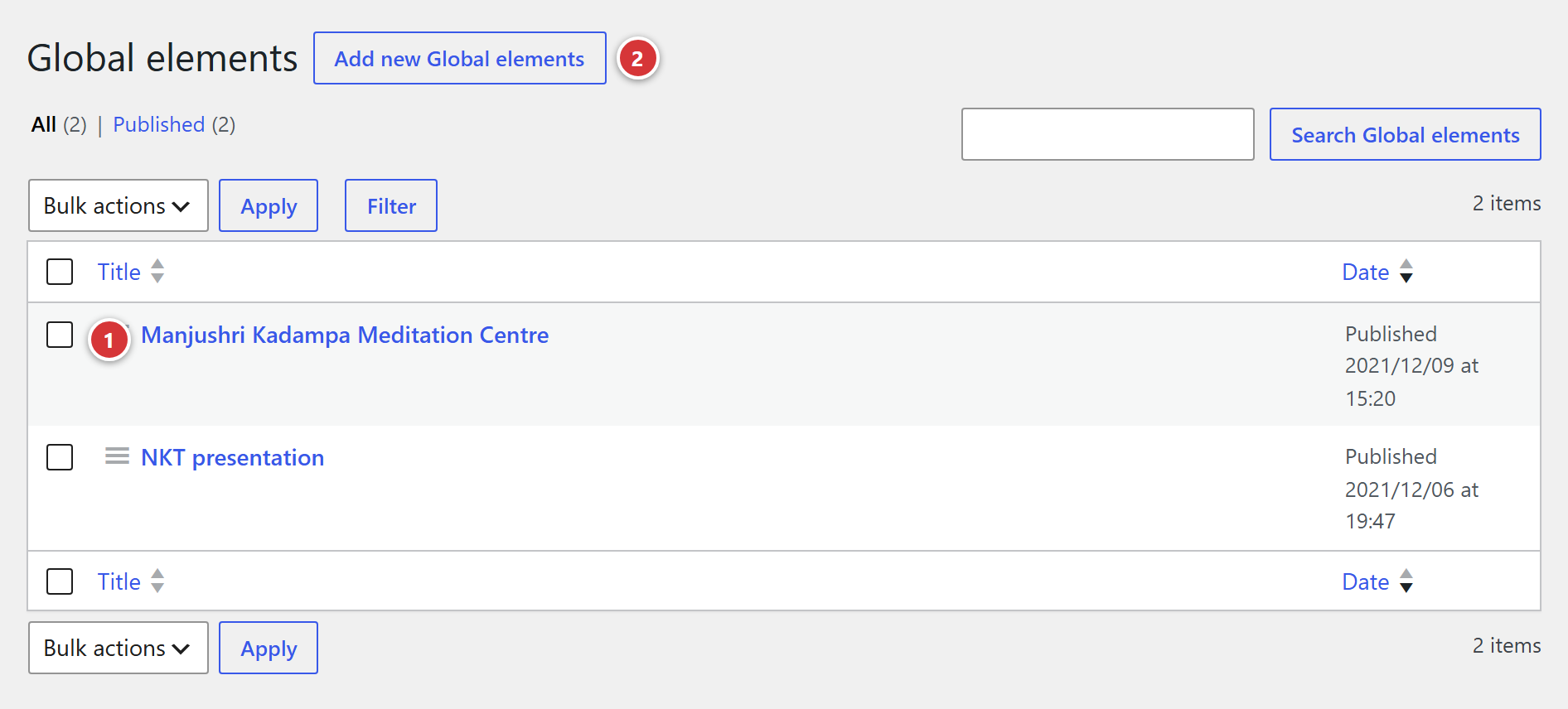
1 Title of a global element. 2 Add new: create a new element.
Understand it in one minute
flowchart LR
    F["Provider site<br>Global elements menu"] -->|"copy, refreshed<br>every 15 minutes"| C1["Client site A"]
F --> C2["Client site B"]- On the provider site, you create an element (a title and a content) and you publish it.
- On each client site, a page calls this element with a small code, the
[global_element name="…"]shortcode, giving its name (see below). - The client site keeps a copy of the element and refreshes it regularly: a change is therefore not immediate on the client sites (see When the change shows).
Create or edit an element (provider site)
- In the Global elements menu, click Add new (or the title of an element to edit).
- Enter the title and the content of the element, as for an ordinary page.
- Click Publish (or Update).
Only published elements are visible to the other sites. A draft, or an element in the Trash, appears nowhere.
The name of the element
The other sites find an element by its address name (the WordPress "slug"), which is shown
under the title, in the Permalink field. For example, an element titled "Summer opening hours"
has the name summer-opening-hours.
Do not change the name of an element already in use
Client sites call the element by its name. If you change it, the pages that call it no longer show anything. To correct a text, edit the content; do not change the title without checking the address name that results from it.
The message on the edit screen
At the top of the edit screen, a message reminds you: "Changes to this global element are visible immediately on this site. Other sites that display it keep their own copy: they will show the change within 15 minutes, or later if their page cache has not expired yet (it can be cleared on the site concerned)."
Show an element on a page (client site)
In the page of the client site, at the place you want (a text or code block of the Avada builder), write:
[global_element name="name-of-the-element"]
replacing name-of-the-element with the name of the element on the provider site. See
Shortcodes in Avada pages. The old name of the shortcode,
[element_global], still works.
For this to work, the client site must know the provider site: its address is set in Settings > Advanced, Source site URL field (see Advanced), reserved for the webmaster.
When the change shows
| Where | When the change is visible |
|---|---|
| On the provider site | Straight away. |
| On a client site | Within about 15 minutes. If the page is kept in memory by the site, a little later. |
If the client site is slow to follow, you can clear the page cache on that site, or wait: the change always arrives in the end.
When the element does not appear
Instead of the element, the page of the client site shows a message:
| Message | What it means |
|---|---|
| "Please specify a valid slug." | The shortcode has no name: write [global_element name="…"]. |
| "Please set the source site URL in Settings > Advanced." | The client site does not know where to look: see the webmaster. |
| "Error while retrieving the data." | The source site did not answer (or answered with an error, whose code is then shown). Try again later, then tell the webmaster. |
| "No content found." | The source site answers, but the element cannot be found or is not published. Check its name and its status. |
Frequently asked questions
I edited the element, but the other site shows the old version. This is normal for about 15 minutes. If it lasts, reload the page of the other site with Ctrl + F5; the webmaster can also clear its cache.
My site does not need to show elements from the others.
Do nothing: a site is only a client if it calls an element with [global_element].
Can I edit an element from the client site? No: an element is edited only on the provider site. The client site only shows a copy of it.
The element appears with a different formatting. The content is formatted by the client site, with its appearance: the colours and fonts follow those of the site that shows it.